Phone call tracking is one of the most important conversion tracking setups for service businesses, agencies, consultants, and lead generation websites.
If users are clicking your phone number but you are not tracking those interactions, you are losing valuable conversion data. By tracking phone number clicks using Google Tag Manager (GTM) and Google Analytics 4 (GA4), you can measure phone leads, identify high-converting pages, and improve campaign performance.
What You’ll Learn
- Understand how phone click tracking works
- Create a GTM trigger for phone number clicks
- Send events to Google Analytics 4
- Verify tracking using DebugView
- Track phone clicks as conversions
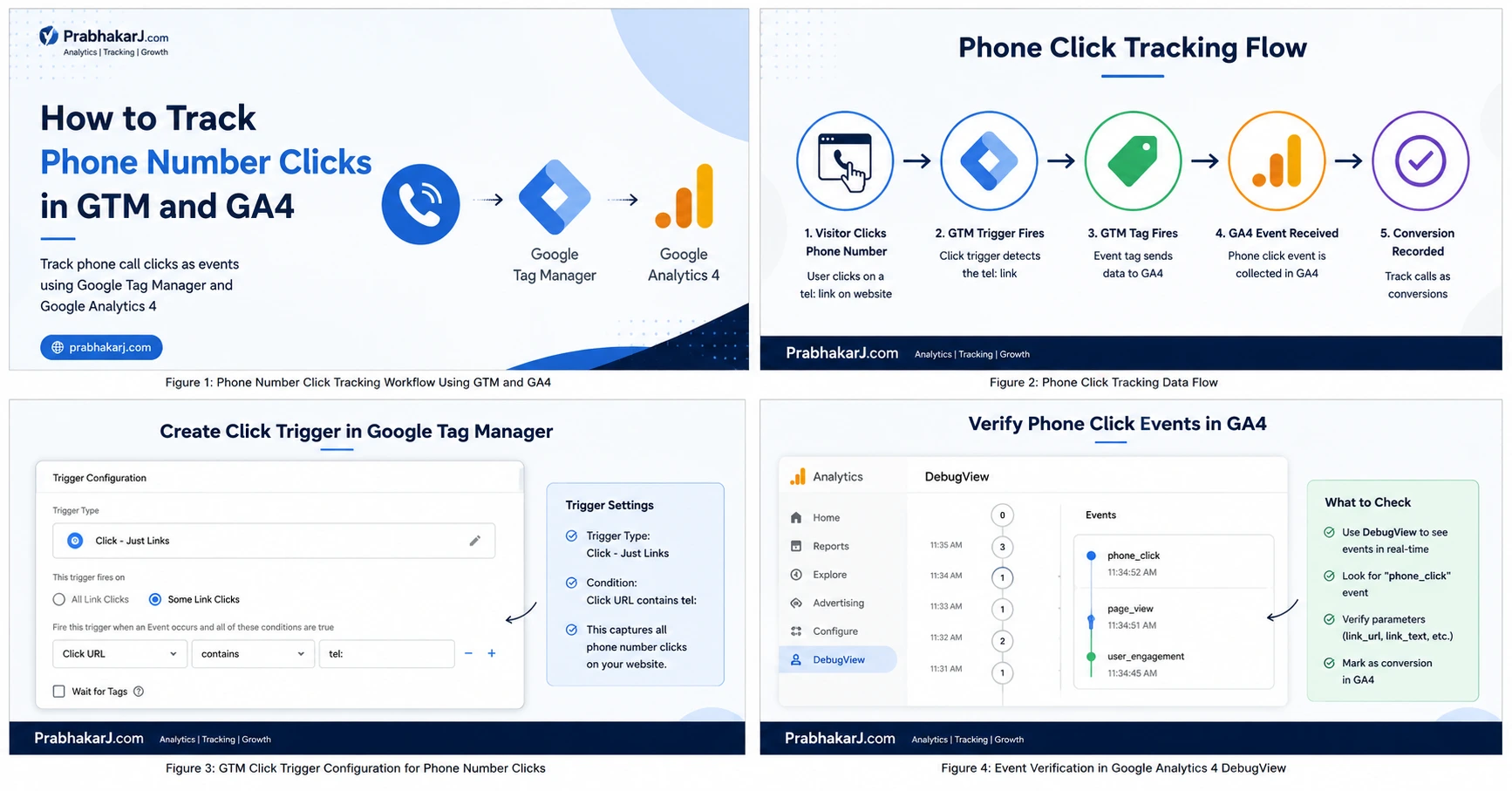
Why Track Phone Number Clicks?
| Without Phone Click Tracking | With Phone Click Tracking |
|---|---|
| No visibility into phone leads | Every phone click is measured |
| Difficult to measure marketing ROI | Better campaign optimization |
| Limited conversion data | Complete lead tracking |
| Decisions based on assumptions | Data-driven marketing decisions |
Many businesses receive leads through phone calls. If you only track form submissions, you miss valuable conversion data. Phone click tracking helps measure user engagement and provides a complete picture of lead generation performance.
Key Takeaways
- Measure phone call lead generation
- Identify high-performing landing pages
- Improve Google Ads optimization
- Track marketing ROI accurately
- Understand user behavior
Quick Answer
To track phone number clicks in Google Tag Manager and GA4:
- Create a Just Links trigger.
- Use
Click URL starts with tel:. - Test the implementation in Preview Mode.
- Verify the event in DebugView.
- Mark the event as a Conversion in GA4.
Tools Covered:
- Google Tag Manager
- Google Analytics 4
- Google Ads
- GA4 DebugView
Best For:
Businesses that generate leads through phone calls.
Who Should Read This Guide?
This guide is ideal for:
- Business Owners
- Digital Marketing Agencies
- PPC Specialists
- SEO Professionals
- Google Tag Manager Implementers
- Google Analytics 4 Administrators
- Lead Generation Websites
- Local Service Businesses
- Healthcare Providers
- Real Estate Companies
What Is Phone Click Tracking?
Phone click tracking is the process of measuring when visitors click a telephone link (tel:) on your website. Each click can be recorded as an event in Google Analytics 4 using Google Tag Manager.
Although a click doesn’t guarantee that a phone conversation takes place, it provides valuable insight into user intent and helps businesses understand how often visitors attempt to contact them by phone.
Phone click tracking is especially useful for businesses that rely on inbound calls, such as healthcare providers, legal firms, real estate agencies, local service companies, consultants, and home improvement businesses.
How Phone Click Tracking Works
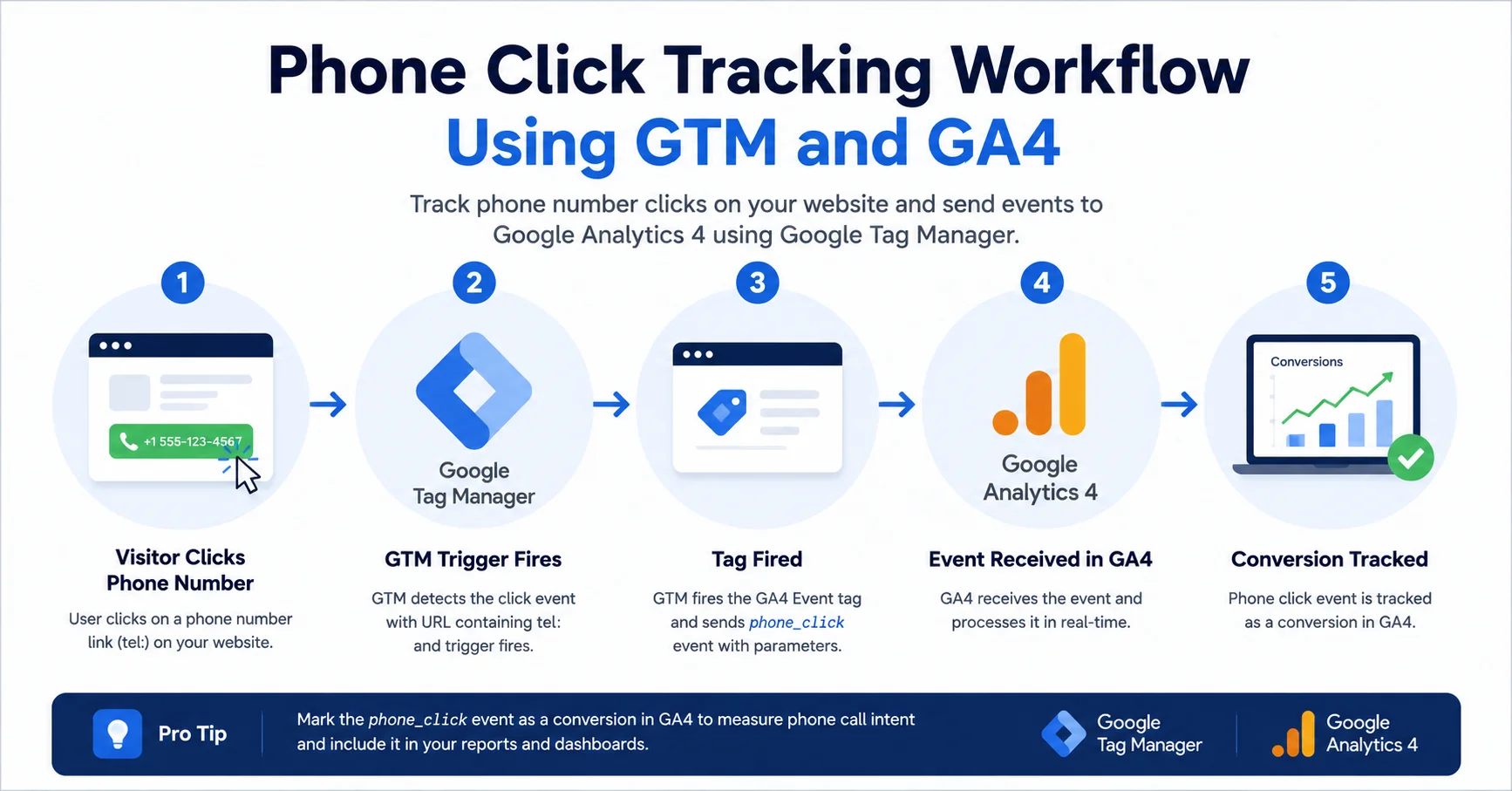
The process is straightforward. When a visitor clicks a phone number link that uses the tel: protocol, Google Tag Manager detects the click and sends an event to Google Analytics 4.
Phone click tracking in GTM and GA4 allows businesses to measure how often visitors tap a phone number link on mobile devices. This helps marketers understand lead generation performance and optimize campaigns using real conversion data.
Common Use Cases Phone click tracking is commonly used by: • Dental Clinics • Hospitals • Lawyers • Real Estate Agencies • Digital Marketing Agencies • Electricians • Plumbers • HVAC Companies • Insurance Companies • Educational Institutions
Step 1: Create a Phone Click Trigger in GTM
 8 Minutes Read
 Beginner
 10 Minutes Setup
Log in to Google Tag Manager and navigate to:
- Triggers
- New
- Click Trigger
- Just Links
Configure the trigger to fire whenever users click a phone number link.
Implementation Checklist
- Create a new trigger
- Select “Just Links”
- Choose “Some Link Clicks”
- Configure telephone link condition
- Save the trigger
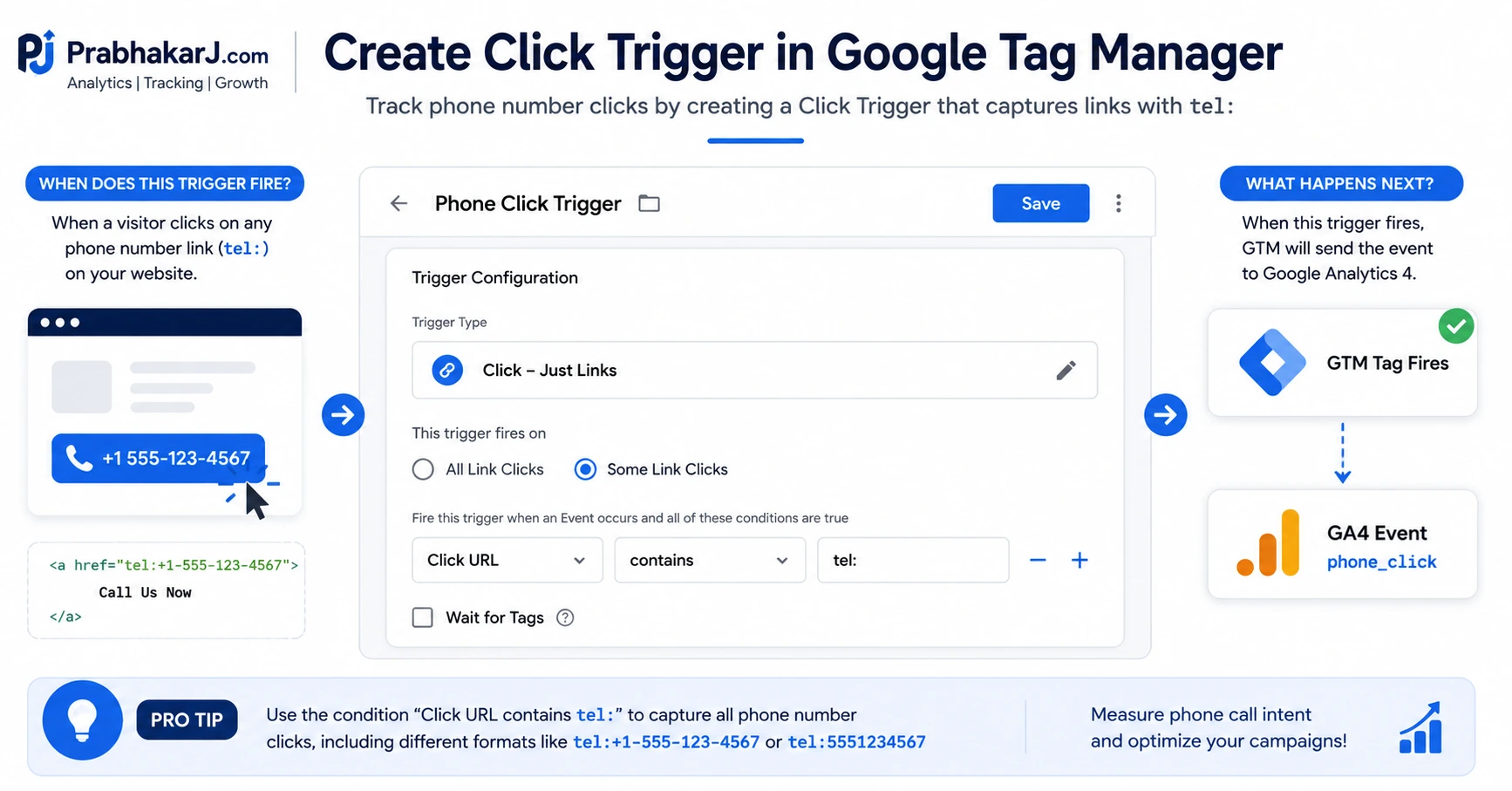
Trigger Condition Configuration
Use the following condition:
Click URL starts with tel:
Step 2: Create a GA4 Event Tag
Once the trigger is ready, create a GA4 Event Tag that sends phone click data to Google Analytics 4.
Recommended Event Configuration
- Tag Type: Google Analytics GA4 Event
- Event Name: phone_click
- Configuration Tag: Existing GA4 Configuration
- Trigger: Phone Click Trigger
Recommended Event Parameters
| Parameter | Value |
|---|---|
| link_url | {{Click URL}} |
| link_text | {{Click Text}} |
| page_url | {{Page URL}} |
Step 3: Test Using GTM Preview Mode
Never publish a GTM container without testing. GTM Preview Mode helps verify that your trigger and tag are firing correctly.
Important Note: Always test phone click tracking before publishing changes to production.
Open Preview Mode and click the phone number on your website.
- Verify the trigger fires
- Verify the event tag fires
- Check for errors
- Confirm event parameters are populated
What We’ve Covered So Far
At this stage, your Google Tag Manager implementation should be able to detect phone number clicks and send the phone_click event to Google Analytics 4. Before publishing your changes, the next step is to verify that the event is received correctly in GA4 and then configure it as a conversion for reporting and campaign optimization.
Step 4: Verify Tracking in GA4 DebugView
After testing in GTM Preview Mode, open Google Analytics 4 DebugView and confirm that the phone_click event is received.
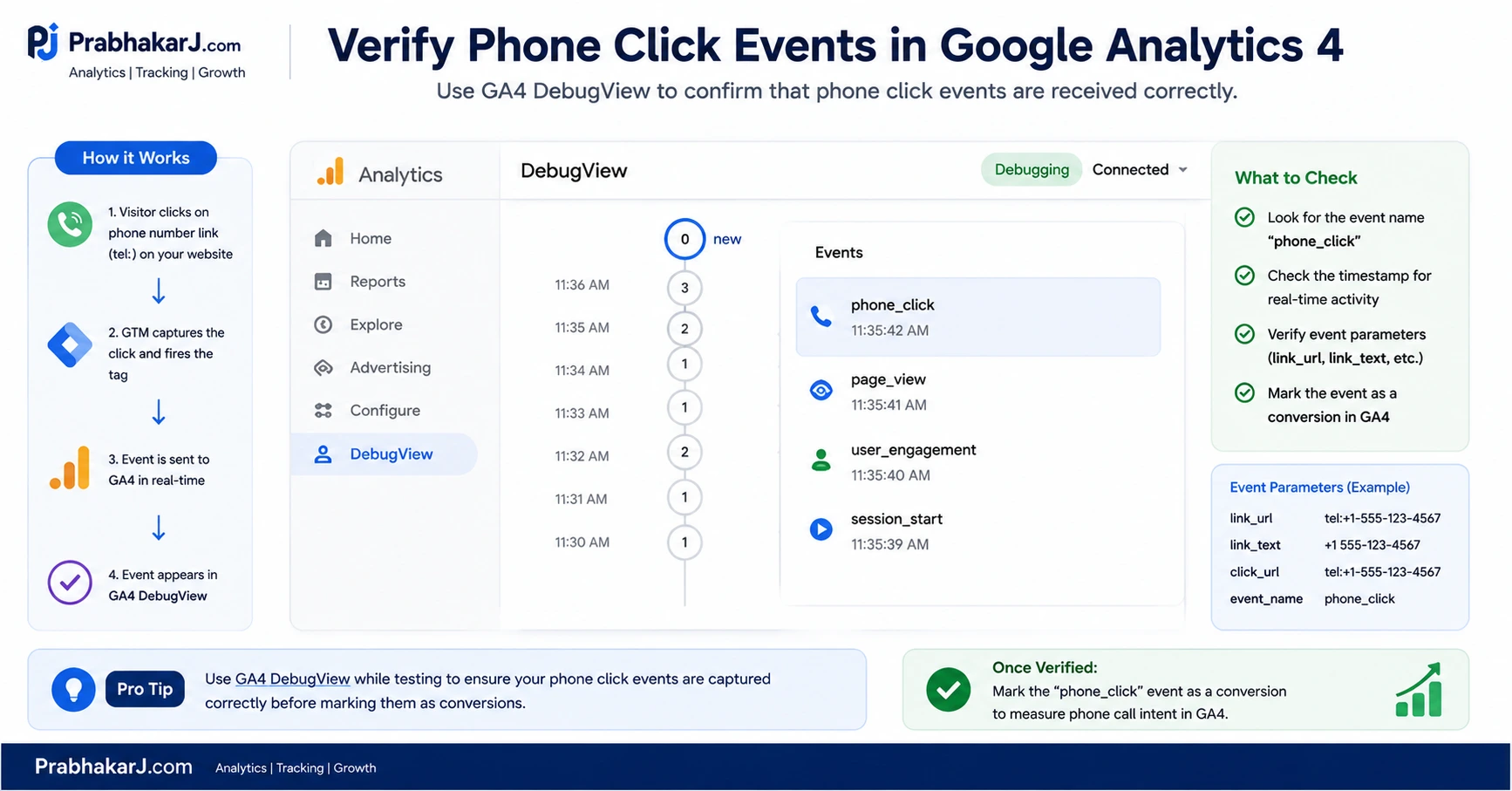
Figure 4: Verifying Phone Click Events in GA4 DebugView
Step 5: Mark Phone Clicks as a Conversion
After the event appears inside GA4, mark it as a conversion.
- Go to Admin
- Open Events
- Locate phone_click
- Enable “Mark as Conversion”
GA4 will now count phone clicks as conversion events and include them in reports.
How to Track Phone Clicks in Google Ads
If you are running Google Ads campaigns, tracking phone number clicks is essential for measuring lead generation performance.
Once phone click events are being sent to Google Analytics 4, you can import the conversion into Google Ads and use it for campaign optimization.
- Create a phone_click event in GA4
- Mark the event as a conversion
- Link Google Ads and GA4
- Import conversions into Google Ads
- Use conversion data for Smart Bidding strategies
This allows Google Ads to optimize campaigns based on users who actually click your phone numbers.
Why This Matters
Many local businesses receive more than 40% of their leads through phone calls. Without tracking phone clicks, your marketing reports may significantly underestimate actual lead volume.
How to Track Multiple Phone Numbers on One Website
Many businesses use multiple phone numbers for different departments, locations, or marketing campaigns.
Google Tag Manager can track all phone number clicks separately by capturing the clicked phone number as an event parameter.
- Sales phone number clicks
- Support phone number clicks
- Branch-specific phone number clicks
- Campaign-specific tracking numbers
This provides deeper insights into which phone numbers generate the highest engagement and conversions.
Common Mistakes to Avoid
Common Mistake:
Creating click triggers on button elements instead of the actual telephone link.
- Not testing before publishing
- Using incorrect trigger conditions
- Missing GA4 configuration tag
- Forgetting to mark the event as a conversion
- Ignoring DebugView validation
Phone Click Tracking Troubleshooting Guide
If your phone click tracking is not working correctly, review the following troubleshooting checklist.
Trigger Is Not Firing
Common Symptoms
- No phone click event appears in GTM Preview Mode.
- The trigger never activates after clicking a phone number.
- The GA4 Event Tag does not fire.
Why It Happens
This usually occurs because the trigger conditions are incorrect or the website’s phone number is not using the tel: protocol. In some cases, the trigger may be configured for the wrong click type or published changes have not been deployed.
How to Verify
- Confirm the phone number uses the tel: protocol.
- Verify the trigger type is set to Just Links.
- Test the implementation using GTM Preview Mode.
- Confirm the Click URL begins with tel:.
How to Fix
- Update the trigger condition to Click URL starts with tel:.
- Ensure the trigger is attached to the correct event tag.
- Publish the latest GTM container after testing.
Best Practice
Pro Tip:
Whenever new phone numbers are added to your website, verify they use clickable tel: links to ensure tracking continues working correctly.
Event Not Appearing in GA4
Common Symptoms
- GTM Preview Mode shows the tag firing.
- No phone_click event appears in GA4.
- Realtime Reports show no activity.
Why It Happens
The event may be sent to the wrong Measurement ID, the GA4 Event Tag may be configured incorrectly, or the GA4 Configuration Tag may not load before the event tag.
How to Verify
- Confirm the correct GA4 Measurement ID.
- Verify the Configuration Tag loads successfully.
- Check GA4 Realtime Reports.
- Inspect DebugView.
How to Fix
- Correct the Measurement ID.
- Ensure the Event Tag references the correct Configuration Tag.
- Republish the GTM container.
Best Practice
Always test new events in GTM Preview Mode before checking GA4 reports.
Pro Tip:
If GTM shows the tag firing but GA4 receives nothing, the issue is usually configuration rather than the trigger.
DebugView Shows No Events
Common Symptoms
- DebugView remains empty.
- Test events never appear.
- Realtime Reports also show no activity.
Why It Happens
DebugView only displays events from devices in debug mode. If Preview Mode is not active or the browser is blocking analytics requests, events may not appear.
How to Verify
- Enable GTM Preview Mode.
- Refresh the website.
- Trigger a phone click.
- Confirm debug mode is active.
How to Fix
- Reconnect GTM Preview Mode.
- Disable browser extensions that block analytics.
- Retry the test using an incognito window.
Best Practice
Use both GTM Preview Mode and GA4 DebugView together during implementation testing.
Pro Tip:
Testing in an incognito browser window often avoids interference from browser extensions.
Common Symptoms
- Events appear in GA4.
- Conversions remain at zero.
- Reports show phone clicks but no conversions.
Why It Happens
The phone_click event may not have been marked as a Key Event (Conversion), or reporting delays may prevent conversions from appearing immediately.
How to Verify
- Open Admin → Key Events.
- Confirm phone_click is marked as a Key Event.
- Review standard reports after processing.
How to Fix
- Mark phone_click as a Key Event.
- Allow sufficient processing time.
- Verify the correct event name is used.
Best Practice
Use consistent event names across Google Tag Manager and GA4 to prevent reporting discrepancies.
Pro Tip:
Always verify the event appears in DebugView before investigating conversion reporting.
Common Symptoms
- Phone click conversions do not appear in Google Ads.
- Imported conversions remain at zero.
- Smart Bidding does not optimize for phone clicks.
Why It Happens
Although GA4 records the phone_click event correctly, the conversion may not have been imported into Google Ads, or account linking may be incomplete.
How to Verify
- Confirm GA4 and Google Ads accounts are linked.
- Verify phone_click has been imported.
- Check the conversion action status in Google Ads.
How to Fix
- Import the correct Key Event into Google Ads.
- Ensure the conversion action is active.
- Allow time for synchronization.
Best Practice
Review imported conversions whenever new GA4 events are created or renamed.
Pro Tip:
After importing a new phone click conversion, perform a test click and verify it appears in both GA4 and Google Ads before relying on it for campaign optimization.
Phone Click Tracking Checklist
Before considering your implementation complete, verify the following:
✓ All phone numbers use clickable tel: links
✓ Phone Click Trigger has been created
✓ GA4 Event Tag is configured correctly
✓ GTM Preview Mode testing is successful
✓ phone_click event appears in GA4 DebugView
✓ phone_click is marked as a Key Event (Conversion)
✓ Conversion has been imported into Google Ads (if applicable)
Completing this checklist helps ensure accurate phone click tracking across Google Tag Manager, Google Analytics 4, and Google Ads.
Best Practices for Phone Click Tracking
- Use a consistent event name such as phone_click.
- Track all clickable phone numbers using the tel: protocol.
- Validate tracking using GTM Preview Mode before publishing.
- Verify events inside GA4 DebugView.
- Mark important phone click events as conversions.
- Use Google Ads conversion imports for campaign optimization.
- Review phone click reports regularly to identify high-performing pages.
Following these best practices ensures accurate data collection and more reliable conversion reporting.
Monthly Phone Click Tracking Audit Checklist
Even if your tracking is working today, website updates, Google Tag Manager (GTM) changes, or configuration errors can affect data collection over time. Performing a monthly audit helps maintain accurate phone click tracking and ensures reliable conversion reporting.
| Audit Item | Frequency |
|---|---|
| Test phone click tracking | Monthly |
| Verify GTM Phone Click Trigger | Monthly |
| Check GA4 DebugView | Monthly |
| Validate phone_click Key Event | Monthly |
| Review Google Ads conversion import | Monthly |
| Confirm tel: links are working correctly | Monthly |
| Check event parameters | Monthly |
| Review GTM container changes | Monthly |
Regular audits help ensure your phone click tracking continues to provide reliable data for reporting, campaign optimisation, and informed business decisions.
Continue Learning
Frequently Asked Questions

Prabhakar J