If your GA4 conversions are missing, delayed, underreported, or showing incorrect numbers, you’re not alone. One of the most common issues businesses face after implementing Google Analytics 4 is inaccurate conversion tracking.
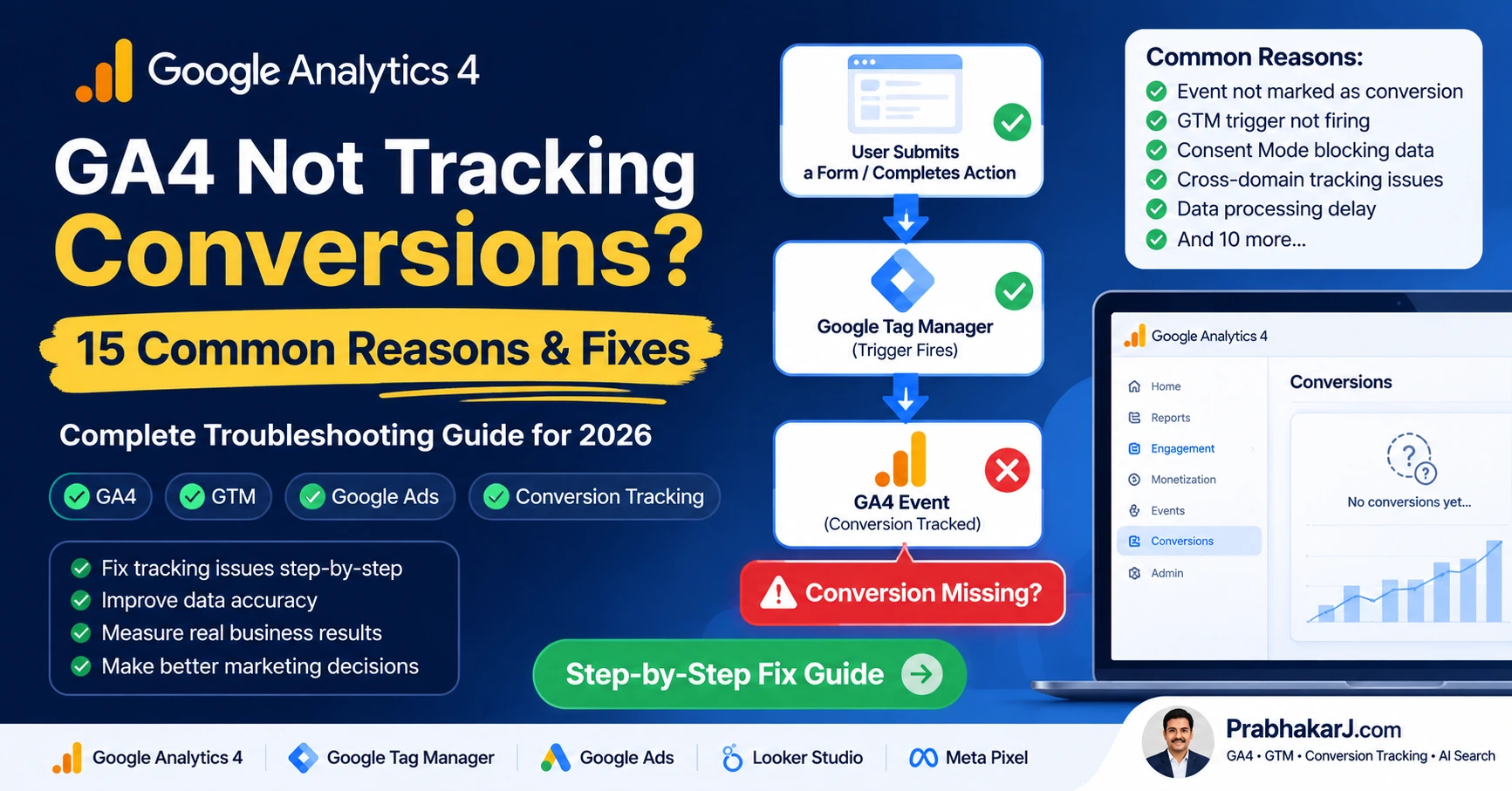
Whether you’re using Google Tag Manager, Google Ads, Meta Pixel, server-side tracking, or Consent Mode, even a small configuration mistake can cause critical conversion data to disappear.
The good news is that most GA4 conversion tracking issues can be diagnosed and fixed using the right troubleshooting process.
In this guide, you’ll learn the 15 most common reasons GA4 is not tracking conversions correctly and how to fix each issue step-by-step.
Quick Answer
If GA4 is not tracking conversions, the most common causes are:
- Conversion events are not marked as conversions.
- Google Tag Manager triggers are not firing.
- Event names do not match conversion settings.
- Consent Mode is blocking analytics tracking.
- Google Ads integration is incomplete.
- Cross-domain tracking is misconfigured.
- Required event parameters are missing.
- Enhanced Measurement is disabled.
- Internal traffic filters are excluding data.
- Reporting delays are causing temporary discrepancies.
Quick Answer
If GA4 is not tracking conversions, the most common causes are:
- Conversion events are not marked as conversions.
- Google Tag Manager triggers are not firing.
- Event names do not match conversion settings.
- Consent Mode is blocking analytics tracking.
- Google Ads integration is incomplete.
- Cross-domain tracking is misconfigured.
- Required event parameters are missing.
- Enhanced Measurement is disabled.
- Internal traffic filters are excluding data.
- Reporting delays are causing temporary discrepancies.
Most issues can be identified using GTM Preview Mode, GA4 DebugView, and Realtime Reports.
Who Should Read This Guide?
This guide is ideal for:
- Business Owners
- Digital Marketing Agencies
- PPC Specialists
- SEO Professionals
- Google Tag Manager Implementers
- GA4 Administrators
- Ecommerce Businesses
- Lead Generation Websites
What Is GA4 Conversion Tracking?
GA4 Conversion Tracking is the process of recording important user actions—such as purchases, form submissions, phone calls, or sign-ups—as conversion events in Google Analytics 4. These events help businesses measure marketing performance and optimize campaigns.
How GA4 Conversion Tracking Works
Before troubleshooting, it’s important to understand how Google Analytics 4 records conversions.
A conversion occurs when a user completes a desired action such as submitting a form, making a purchase, booking a demo, downloading a resource, or subscribing to a newsletter.
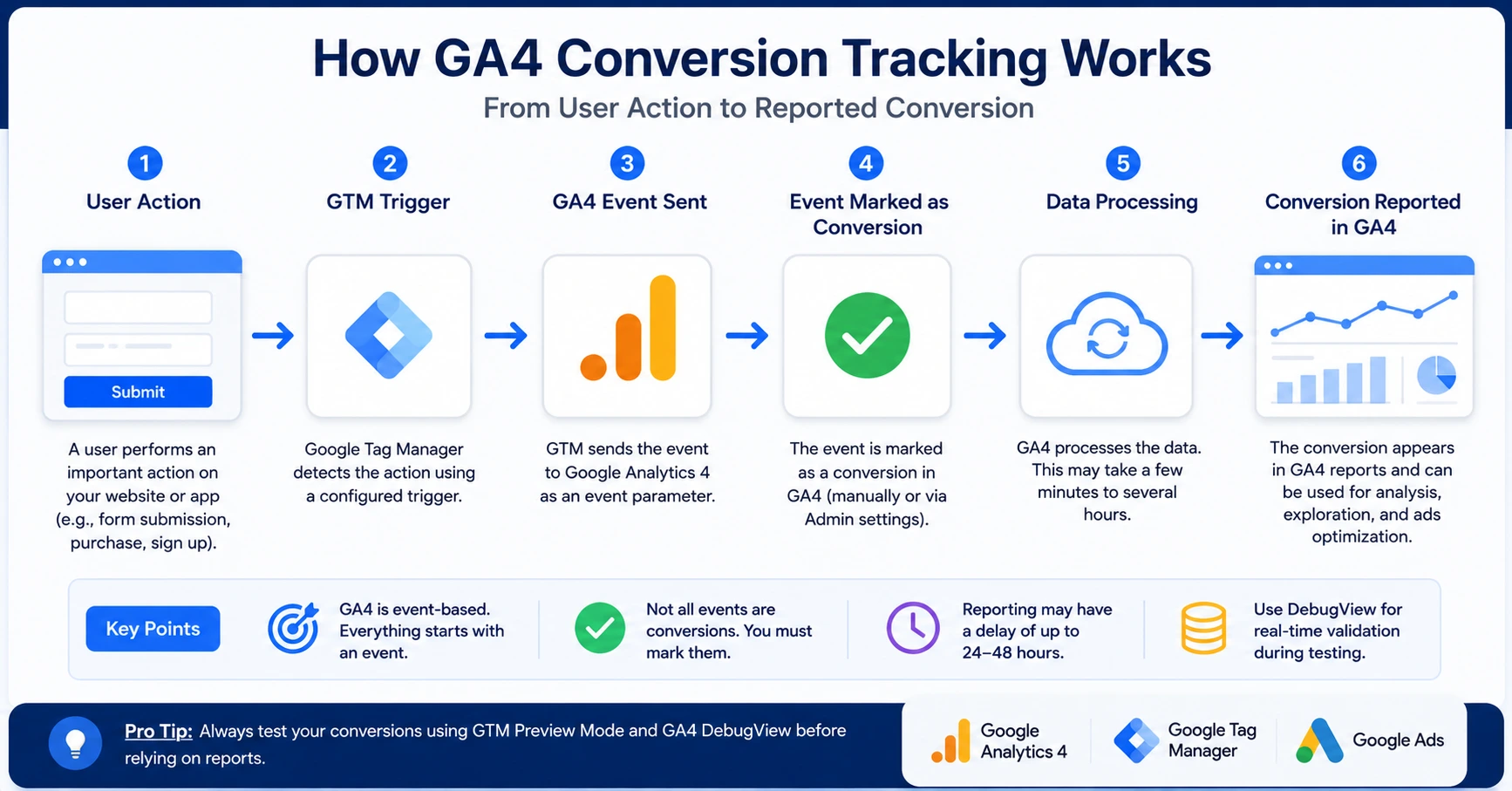
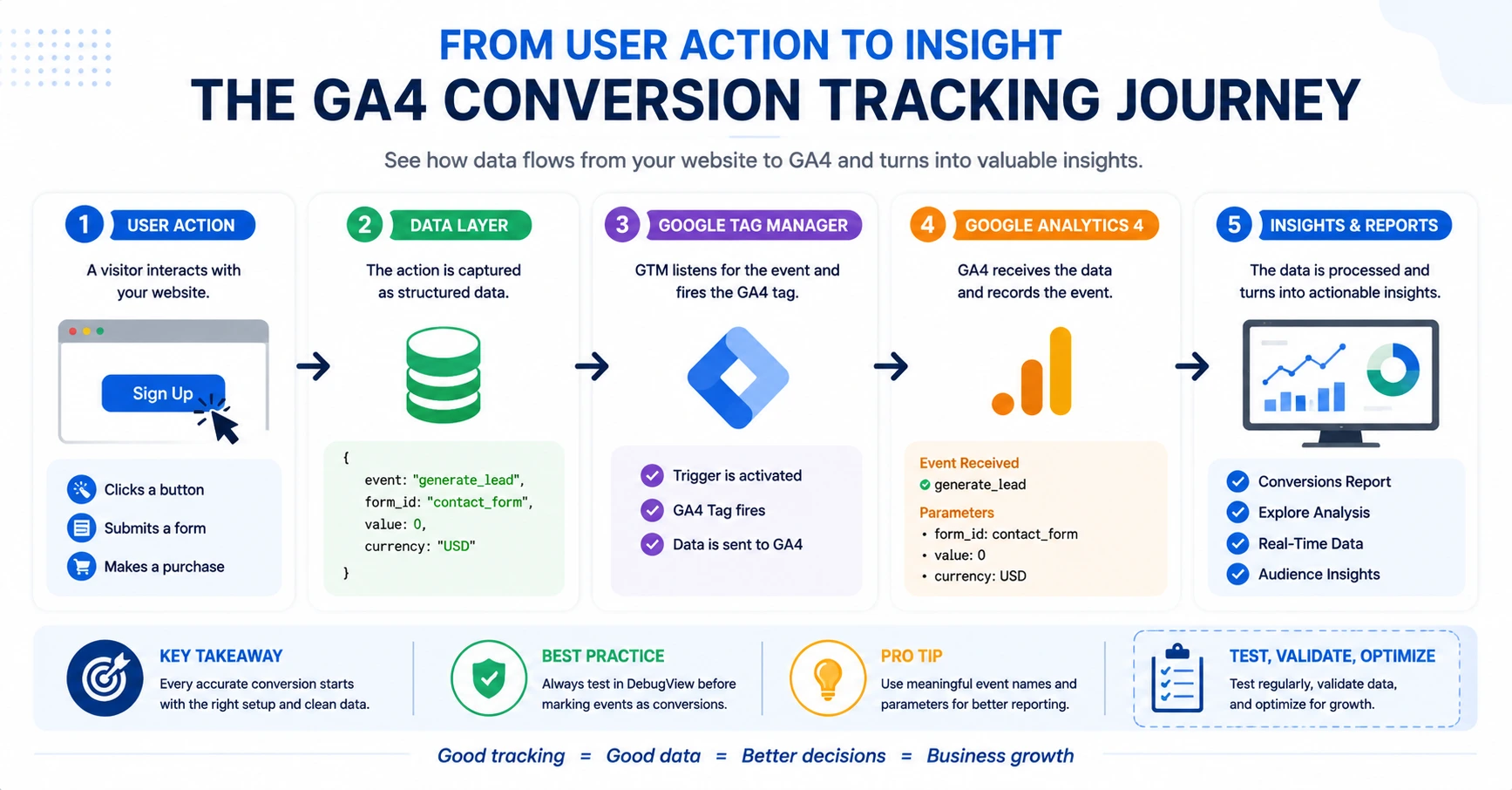
| Step | Description |
|---|---|
| 1 | User completes an action |
| 2 | Google Tag Manager fires an event |
| 3 | GA4 receives the event |
| 4 | Event is marked as a conversion |
| 5 | Conversion appears in reports |
Reason #1: Event Is Not Marked as a Conversion
One of the most common reasons GA4 fails to report conversions is that the event exists but has not been marked as a conversion.
Many website owners assume that once an event appears inside GA4 it automatically becomes a conversion. This is incorrect.
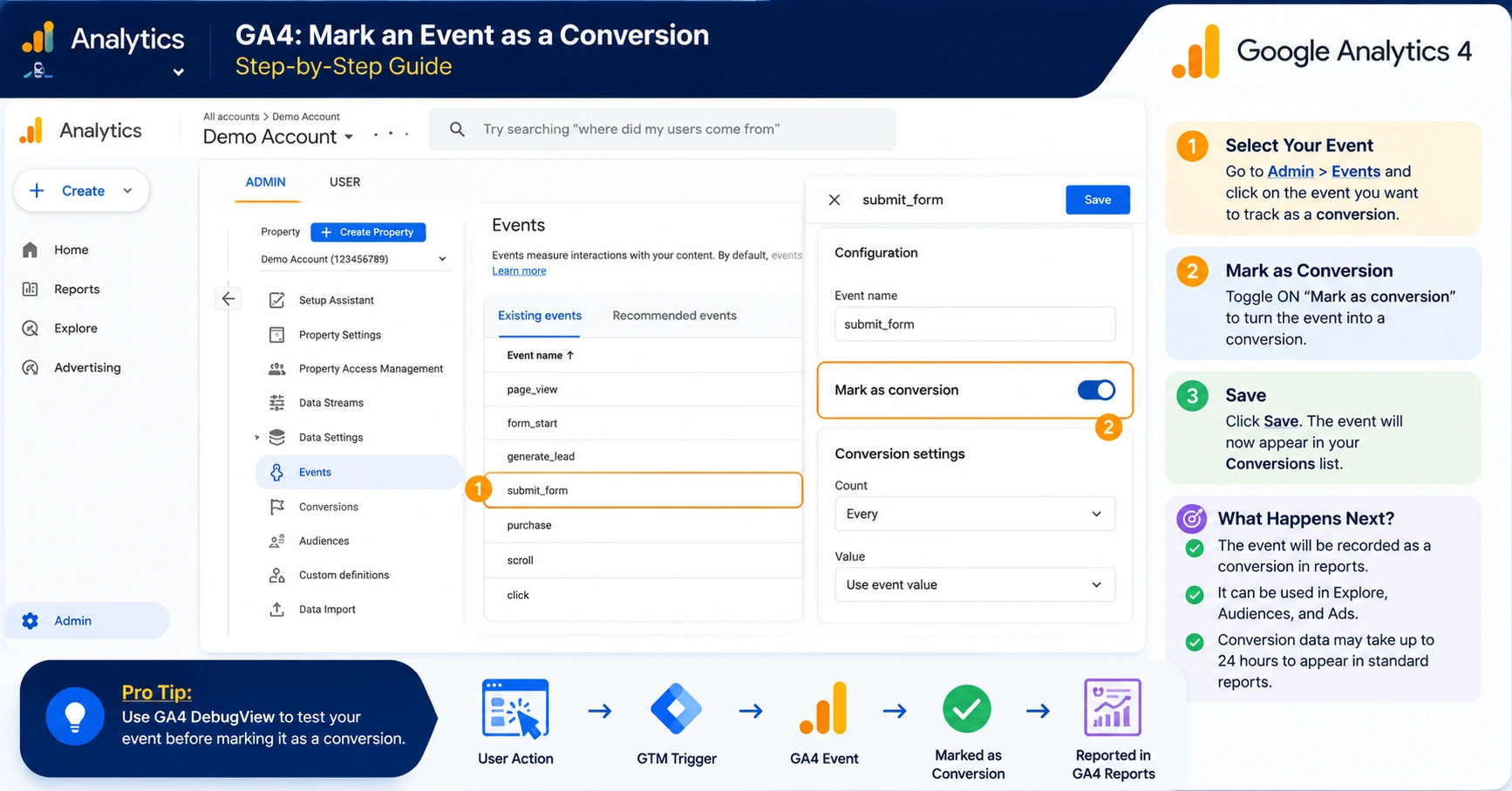
Quick Fix: Navigate to Admin → Events → Locate the event → Enable “Mark as Conversion”.
Why It Happens
Google Analytics 4 records events and conversions separately. Simply sending an event to GA4 does not automatically count it as a conversion. If the event has not been marked as a Key Event (formerly called a Conversion), it will appear in reports as a regular event but will never be included in your conversion metrics.
This is one of the most common configuration mistakes, especially after creating new events or implementing conversion tracking through Google Tag Manager.
How to Fix It
- Open Google Analytics 4
- Navigate to Admin
- Select Events
- Locate the event
- Enable “Mark as Conversion”
- Wait for processing
Reason #2: Google Tag Manager Tag Is Not Firing
If GTM does not fire correctly, GA4 never receives the conversion event.
This often happens after website redesigns, plugin changes, form modifications, or GTM updates.
Common GTM Problems
The most common causes include:
- Incorrect trigger setup
- Missing variables
- Wrong event name
- Container not published
- JavaScript errors
- Consent Mode blocking tags
How to Verify Tag Firing
- Open Google Tag Manager
- Click Preview
- Enter your website URL
- Perform the conversion action
- Check whether the GA4 tag fired
Reason #3: Event Name Mismatch Between GTM and GA4
GA4 treats event names as case-sensitive values. Even a small spelling difference can prevent conversion tracking from working.
For example, generate_lead and Generate_Lead are treated as two completely different events.
Best Practice
Use lowercase naming conventions for all GA4 events and maintain consistent naming across GTM and GA4.
| Conversion Type | Recommended Event |
|---|---|
| Lead Form | generate_lead |
| Purchase | purchase |
| Newsletter Signup | sign_up |
| Demo Request | generate_lead |
Reason #4: DebugView Shows No Events
DebugView is one of the fastest ways to identify conversion tracking problems.
If events don’t appear in DebugView, GA4 is not receiving data from your website.
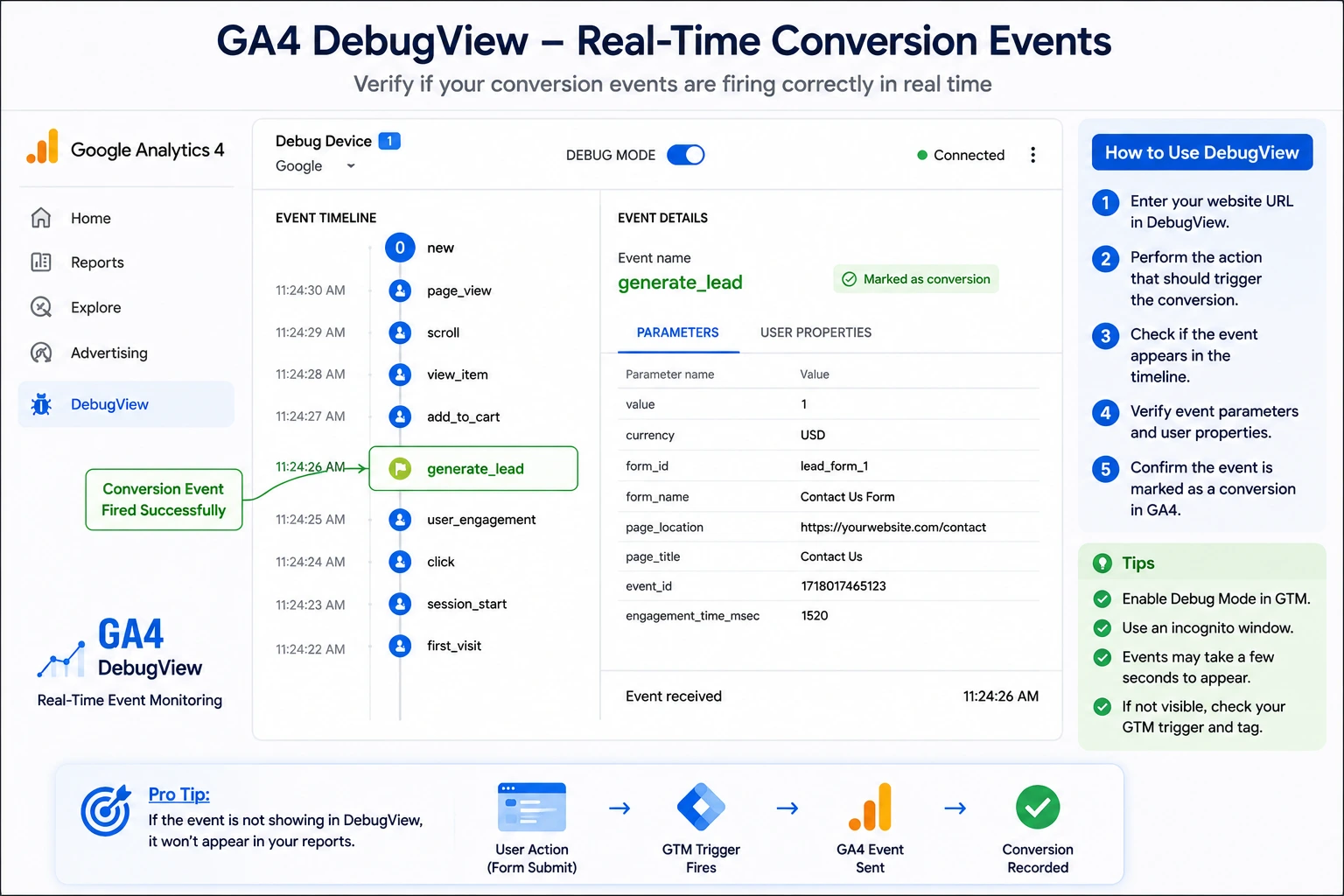
Common Causes
- GA4 tag missing
- Incorrect Measurement ID
- GTM container unpublished
- Consent restrictions
- Browser extensions blocking analytics
Reason #5: Google Ads Is Not Properly Linked to GA4
Many businesses discover that conversions appear in GA4 but never appear inside Google Ads.
This usually indicates an account linking or conversion import issue.
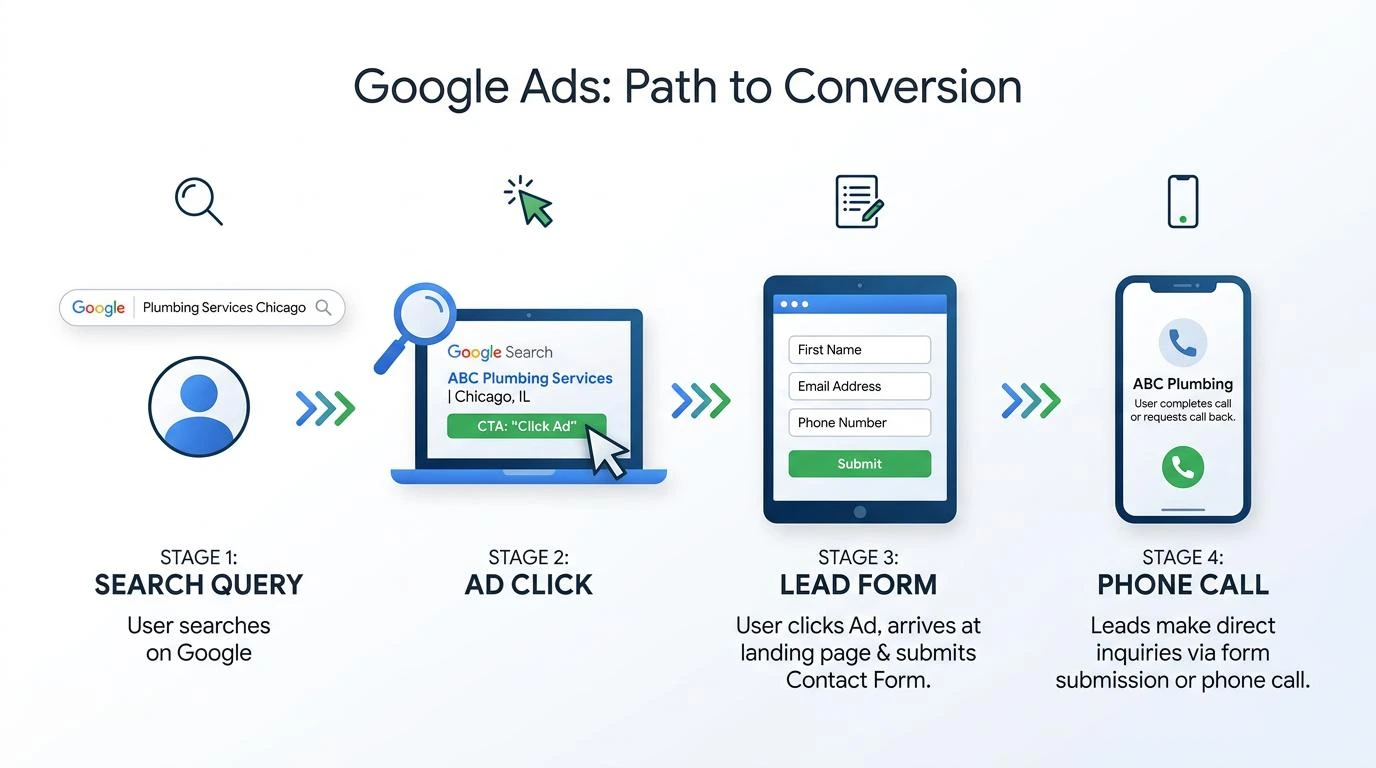
Required Configuration
- Google Ads linked to GA4
- Auto-tagging enabled
- Conversions imported
- Personalized advertising enabled
- Cross-domain tracking configured
What We’ve Covered So Far
At this point, we’ve covered the first five causes of missing GA4 conversions:
- Event not marked as a conversion
- Google Tag Manager tag not firing
- Event name mismatch
- DebugView showing no events
- Google Ads integration issues
Next, we’ll cover Reasons #6–#10, including Consent Mode, Cross-Domain Tracking, Internal Traffic Filters, Event Parameters, and Enhanced Measurement issues.
Reason #6: Consent Mode Is Blocking Conversion Tracking
As privacy regulations such as GDPR, CCPA, and other data protection laws become more important, many websites now use cookie banners and Consent Mode implementations.
While these tools help maintain compliance, they can also unintentionally block conversion tracking if configured incorrectly.
One of the most overlooked causes of missing GA4 conversions is Consent Mode preventing analytics events from firing until visitors grant permission.
Common Warning
Many businesses assume GA4 is broken when the real issue is that users are declining analytics cookies or Consent Mode is blocking event collection.
Common Symptoms
- GA4 reports fewer conversions than expected
- Google Ads reports significantly lower conversions
- Events appear only for some users
- Conversion rates drop after installing a cookie banner
How to Fix It
- Review your cookie consent solution
- Verify Consent Mode implementation
- Test using GTM Preview Mode
- Review consent status in Tag Assistant
- Ensure analytics_storage is granted when appropriate
Reason #7: Cross-Domain Tracking Is Configured Incorrectly
Many businesses use multiple domains for websites, payment gateways, booking systems, and third-party applications.
If cross-domain tracking is not configured correctly, GA4 may treat the same visitor as multiple users.
This often causes attribution issues, session breaks, and missing conversions.
Common Symptoms
- Session breaks between domains
- Self-referrals appear in reports
- Traffic sources become inaccurate
- Conversions disappear after checkout
How to Fix It
- Open GA4 Admin
- Select Data Streams
- Choose your Web Stream
- Open Configure Tag Settings
- Select Configure Domains
- Add all connected domains
Reason #8: Internal Traffic Filters Are Excluding Real Conversions
GA4 allows administrators to exclude internal company traffic from reports.
While useful, incorrectly configured filters can accidentally remove legitimate conversion data.
This issue is common when businesses use VPNs, remote teams, dynamic IP addresses, or shared office networks.
Common Symptoms
- Employees cannot see test conversions
- Conversions appear in DebugView but not reports
- Lead counts are lower than CRM records
Why It Happens
Internal traffic filters are designed to exclude visits from employees, developers, and office networks. However, if they’re configured too broadly, they can also filter out legitimate user activity. This is especially common when businesses use VPNs, dynamic IP addresses, shared office networks, or remote teams.
How to Verify
Open Google Analytics 4 and review your internal traffic filter settings:
- Open Admin
- Select Data Settings
- Choose Data Filters
- Review Internal Traffic Filters
- Temporarily disable filters for testing
Best Practice
Only exclude traffic from verified office IP addresses and regularly review filter configurations whenever your team, office locations, or network infrastructure changes.
Key Takeaways
-
Always review internal traffic filters before troubleshooting more advanced tracking issues.
Reason #9: Required Event Parameters Are Missing
Many GA4 events depend on parameters to provide accurate reporting and attribution.
Without required parameters, conversions may fire but generate incomplete reporting.
This is especially common for ecommerce tracking, lead generation forms, and custom events.
Examples of Important Parameters
| Event | Required Parameter |
|---|---|
purchase |
value |
purchase |
currency |
generate_lead |
form_name |
sign_up |
method |
How to Verify
Examples of Important Parameters
Review GTM Event Tag configuration
Verify Data Layer variables
Check DebugView
Validate parameter values
Republish GTM container
Reason #10: Enhanced Measurement Is Disabled
Enhanced Measurement is one of GA4’s most useful features because it automatically tracks important user interactions.
If Enhanced Measurement is disabled, key interactions may never reach Google Analytics 4.
This can create reporting gaps and make it appear as though conversion tracking is broken.
Automatically Tracked Events
- Page Views
- Scroll Tracking
- Outbound Clicks
- Site Search
- File Downloads
- Video Engagement
- Form Interactions
How to Verify
- Open Admin
- Select Data Streams
- Choose your Website Stream
- Enable Enhanced Measurement
- Review each tracking option
- Page Views Enabled
- Scroll Tracking Enabled
- Outbound Click Tracking Enabled
- Site Search Enabled
- Video Tracking Enabled
- File Download Tracking Enabled
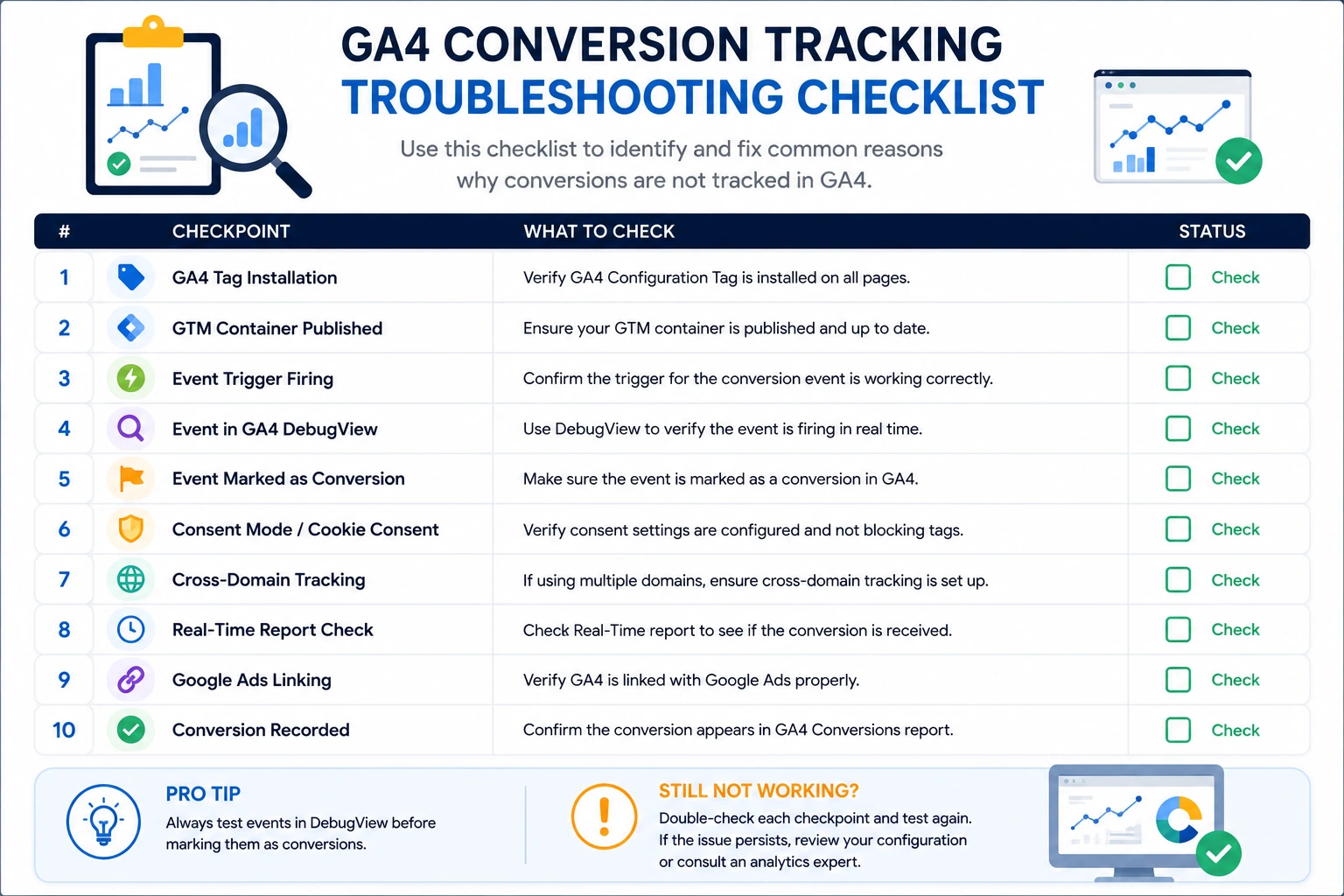
- Conversion event marked correctly
- Google Tag Manager tag firing
- Event names match exactly
- DebugView receiving events
- Google Ads linked successfully
- Consent Mode validated
- Cross-domain tracking configured
- Internal traffic filters reviewed
- Required parameters present
- Enhanced Measurement enabled
Summary: We’ve now covered the first 10 reasons why GA4 conversions may not be tracking correctly. Next, we’ll move into advanced troubleshooting topics including Server-Side Tracking, Data Thresholding, Reporting Delays, Duplicate Tracking, and Ongoing Analytics Audits.
What We’ve Covered So Far
By this point, you’ve learned the first 10 most common reasons why Google Analytics 4 may not be tracking conversions accurately. Many of these issues are related to implementation errors, configuration settings, or tracking behavior that can prevent conversion data from being collected or reported correctly.
So far, we’ve covered:
- Event not marked as a conversion
- Google Tag Manager tag not firing
- Event name mismatch between GTM and GA4
- DebugView not receiving events
- Google Ads account linking issues
- Consent Mode blocking analytics tracking
- Cross-domain tracking configuration problems
- Internal traffic filters excluding conversion data
- Missing required event parameters
- Enhanced Measurement configuration
In the next section, we’ll move into more advanced troubleshooting topics, including server-side tracking, data thresholding, reporting delays, duplicate tracking implementations, and the importance of performing regular GA4 audits. These topics become increasingly important as your tracking setup grows in complexity.
Reason #11: Server-Side Tracking Configuration Issues
Server-side tracking has become increasingly popular because it improves data accuracy, enhances privacy compliance, and reduces reliance on browser-based tracking.
However, if the server container is configured incorrectly, conversions may never reach Google Analytics 4.
This issue is particularly common when implementing Server-Side Google Tag Manager (sGTM), Meta Conversions API, or custom Measurement Protocol integrations.
Common Symptoms
- Browser tracking works but server events are missing
- GA4 shows inconsistent conversion counts
- Duplicate conversions appear unexpectedly
- Purchase events fail intermittently
How to Verify
- Verify server container deployment
- Review event forwarding rules
- Validate Measurement Protocol requests
- Check event deduplication settings
- Test server events in DebugView
Reason #12: Data Thresholding Is Hiding Conversions
Google Analytics 4 applies privacy thresholds in certain reports to protect user data.
When thresholding is applied, some conversion data may not appear even though the events were successfully recorded.
This frequently confuses marketers because conversions appear in one report but seem to disappear in another
Common Symptoms
- Conversions appear in Realtime Reports
- Conversions disappear in standard reports
- Low-volume conversions are hidden
- Explorations show incomplete data
Why It Happens
- Google Signals enabled
- Small audience sizes
- Demographic reporting enabled
- Privacy protections applied
How to Fix It
Review Reporting Identity settings
Check Google Signals configuration
Compare reports with BigQuery exports
Monitor low-volume conversion events
Reason #13: GA4 Reporting Delays
Many users assume conversion tracking is broken when the real issue is simply reporting delay.
Unlike Universal Analytics, GA4 uses more advanced data processing and attribution systems.
As a result, some reports require additional time before data becomes visible.
Typical Processing Times
| Report Type | Processing Time |
|---|---|
| Realtime Reports | Seconds to Minutes |
| DebugView | Near Real-Time |
| Standard Reports | 24–48 Hours |
| Attribution Reports | 24–72 Hours |
How to Verify
- Check Realtime Reports
- Review DebugView
- Confirm event collection
- Wait 24–48 hours
- Review standard reports again
Reason #14: Duplicate Tracking Implementations
Duplicate tracking occurs when multiple GA4 implementations send the same event more than once.
This commonly happens when businesses use multiple tracking methods simultaneously.
- Google Tag Manager
- GA4 WordPress plugins
- Direct gtag.js implementation
- Third-party tracking software
Running multiple implementations often results in inflated conversions and inaccurate reporting.
Common Symptoms
- Double-counted conversions
- Inflated revenue figures
- Duplicate purchase events
- Unrealistic engagement metrics
How to Verify
- Open GA4 DebugView
- Perform a single conversion action
- Monitor incoming events
- Check for duplicate entries
- Review installed tracking methods
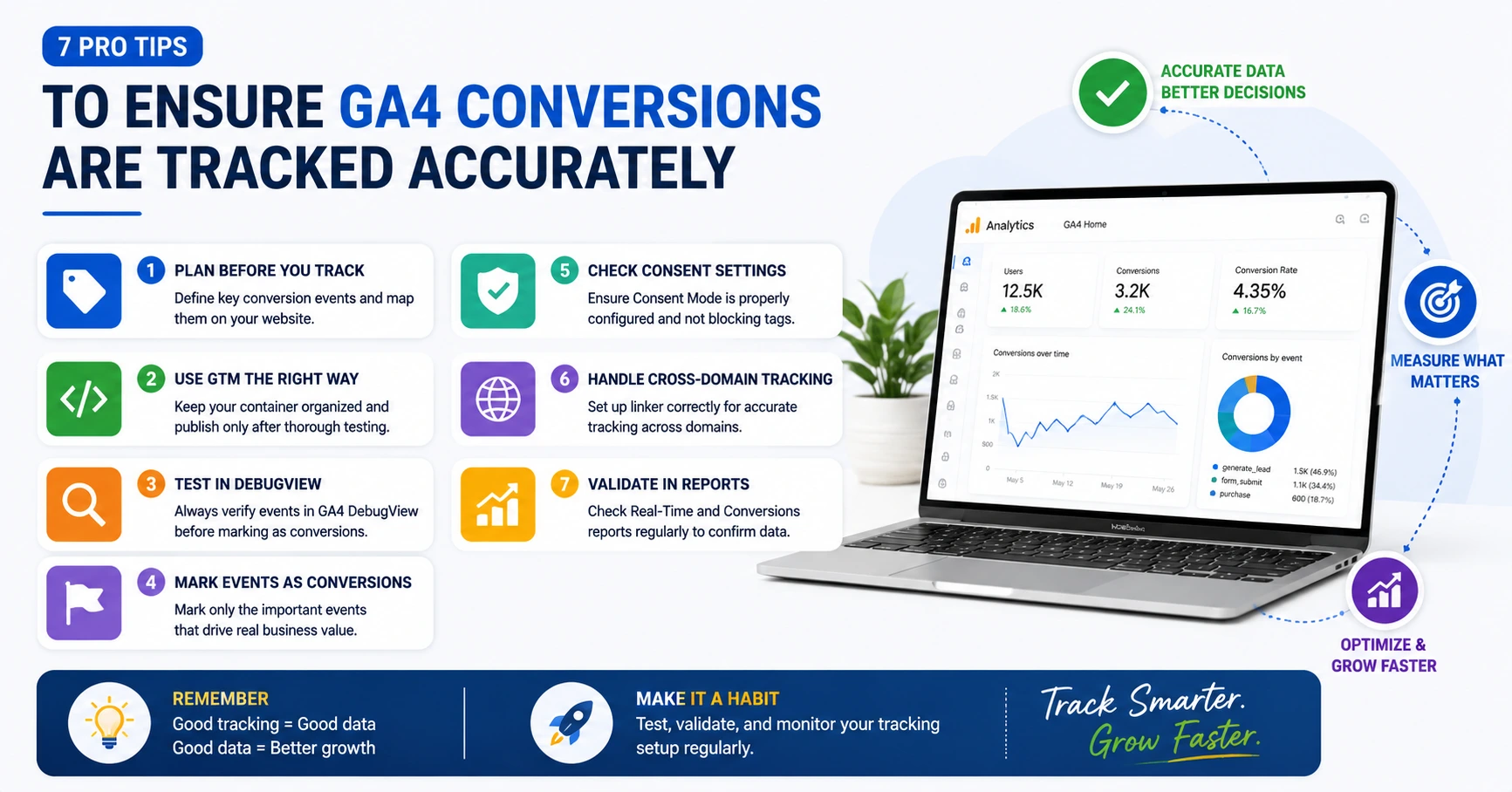
Best Practice: Use Google Tag Manager as the central tracking platform whenever possible and avoid multiple parallel implementations.
Reason #15: No Ongoing GA4 Audit Process
Even a perfectly configured GA4 implementation can develop issues over time.
Website redesigns, plugin updates, CRM integrations, form changes, and marketing platform updates can all affect conversion tracking accuracy.
Organizations that do not perform regular analytics audits often discover tracking issues months after they occur.
Regular audits help ensure your conversion data remains accurate as your website, marketing tools, and business processes evolve.
You’ve Identified the Most Common GA4 Conversion Tracking Issues
You’ve now explored all 15 common reasons why Google Analytics 4 may fail to track conversions correctly. From basic configuration mistakes to advanced implementation challenges, each issue can affect the accuracy of your conversion data and the reliability of your marketing reports.
Here’s a quick recap of what we’ve covered:
- Basic GA4 event configuration
- Google Tag Manager implementation issues
- Event naming consistency
- DebugView troubleshooting
- Google Ads integration
- Consent Mode configuration
- Cross-domain tracking
- Internal traffic filters
- Event parameter validation
- Enhanced Measurement
- Server-side tracking
- Data thresholding
- Reporting delays
- Duplicate tracking implementations
- Ongoing analytics audits
In the remaining sections, we’ll bring everything together with a complete troubleshooting checklist, implementation checklist, best practices, frequently asked questions, and practical recommendations to help you build a reliable and scalable GA4 conversion tracking setup.
Recommended Audit Frequency
| Business Type | Audit Frequency |
|---|---|
| Small Business Website | Quarterly |
| Lead Generation Website | Monthly |
| Ecommerce Website | Monthly |
| Enterprise Website | Weekly |
Monthly Audit Checklist
- Verify conversion events
- Review GTM triggers
- Test contact forms
- Validate Google Ads imports
- Review DebugView
- Check Consent Mode behavior
- Review attribution reports
- Monitor ecommerce tracking
Advanced Troubleshooting Summary
- Server-side tracking must be configured correctly
- Data thresholding can hide conversion data
- GA4 reports may require processing time
- Duplicate tracking creates inaccurate reporting
- Regular audits help maintain data quality
- DebugView remains the fastest validation tool
- Google Tag Manager simplifies troubleshooting
- Monthly audits prevent long-term tracking failures
At this point, we’ve covered all 15 major reasons why Google Analytics 4 may not be tracking conversions correctly.
Next, we’ll bring everything together with a complete troubleshooting checklist, implementation checklist, best practices, entity SEO section, FAQs, and a conversion-focused call-to-action.
Complete GA4 Conversion Tracking Troubleshooting Checklist
If your conversions are still not appearing correctly in Google Analytics 4, use this checklist to systematically identify and resolve tracking issues.
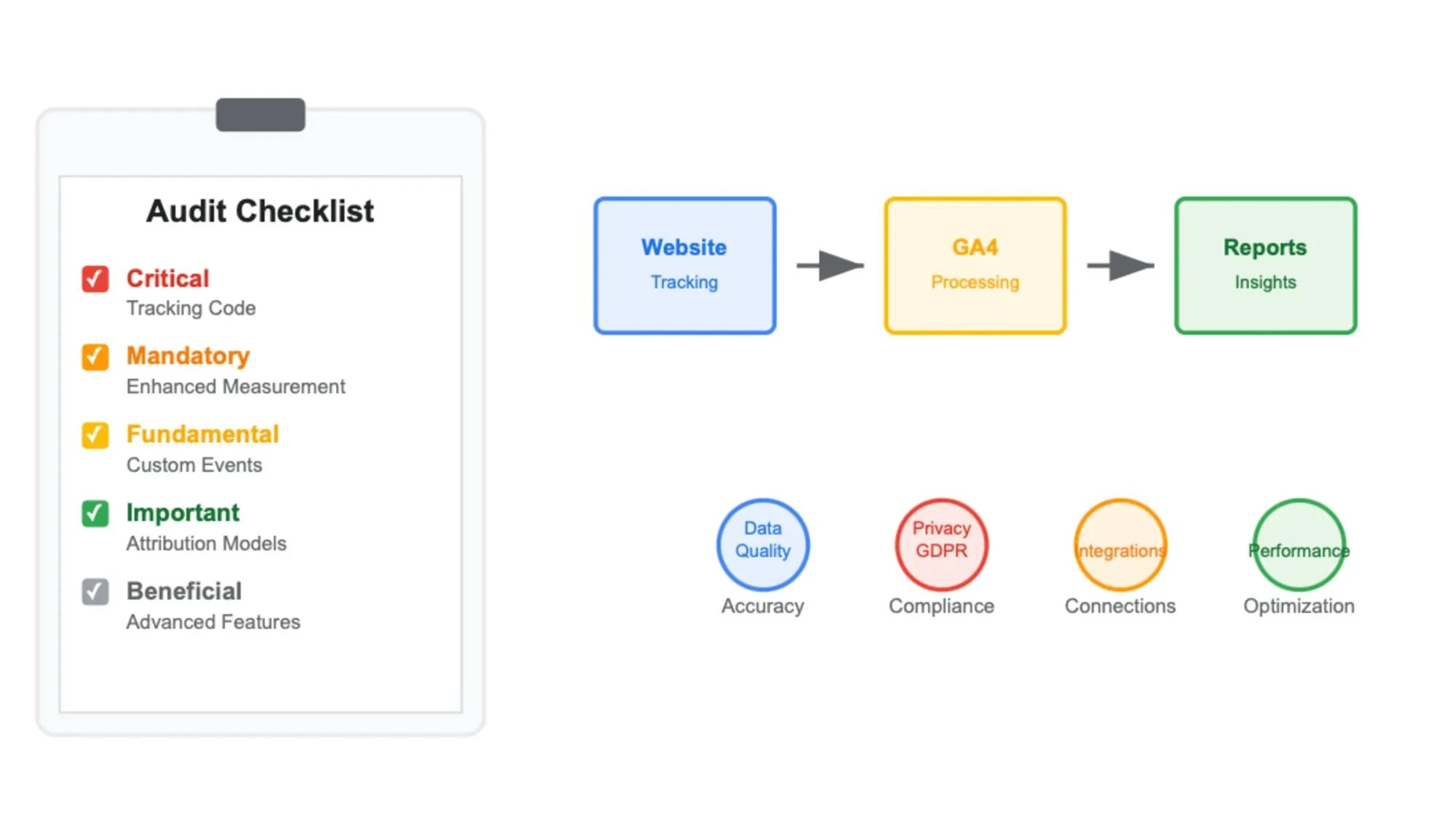
Quick Audit Checklist
- GA4 property configured correctly
- GA4 tag installed on all pages
- Google Tag Manager container published
- Event triggers firing properly
- Events visible in DebugView
- Events marked as conversions
- Consent Mode validated
- Cross-domain tracking configured
- Google Ads linked successfully
- Conversion imports completed
- No duplicate tracking implementation
- Internal traffic filters reviewed
- Required event parameters present
- Enhanced Measurement enabled
- Reports validated after processing
GA4 Conversion Tracking Implementation Checklist
Whether you’re setting up Google Analytics 4 for a new website or auditing an existing implementation, this checklist helps ensure accurate conversion measurement.
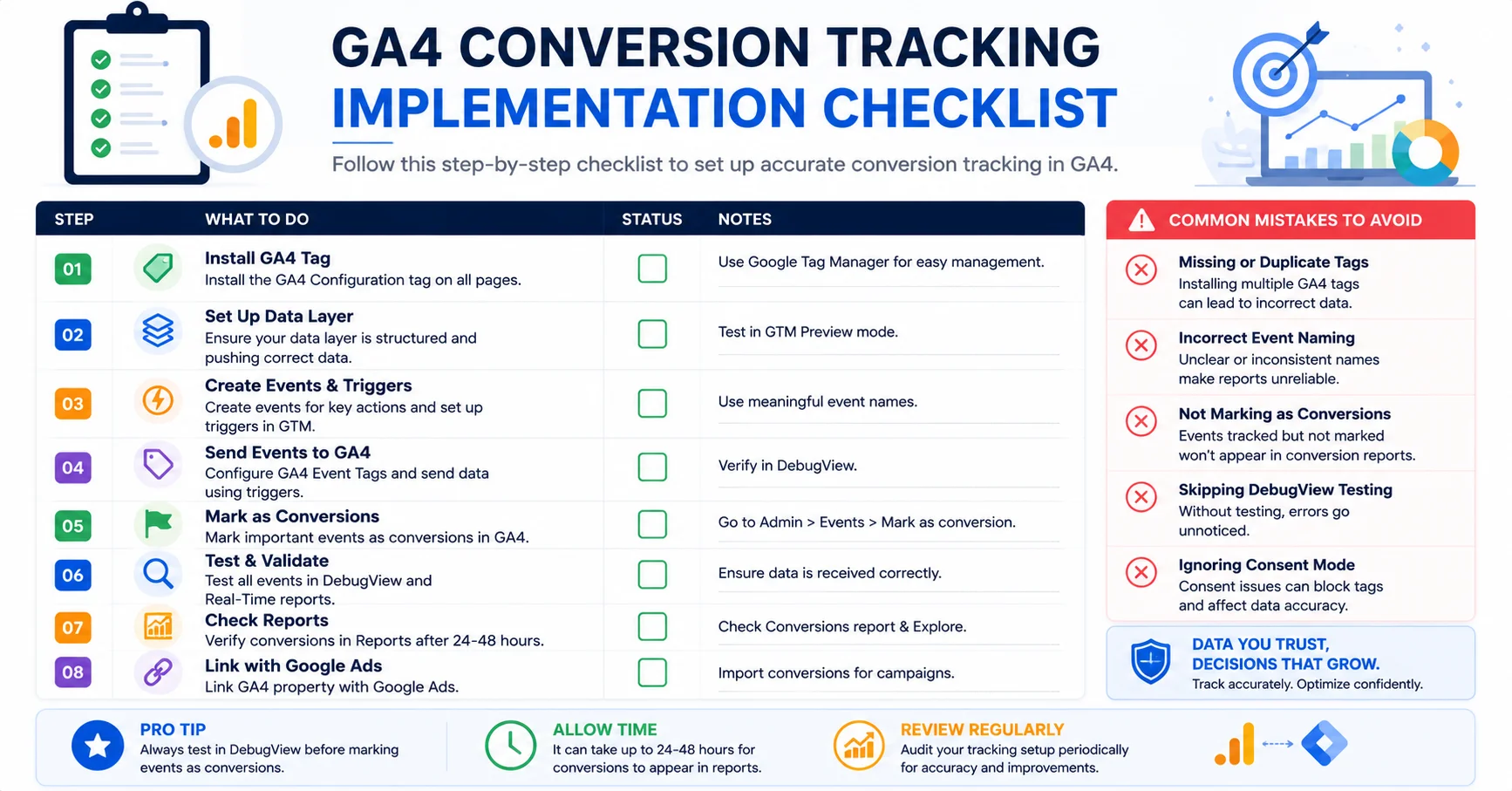
GA4 Conversion Tracking Implementation Checklist
| Task | Status |
|---|---|
| Create GA4 Property | ✓ |
| Install Google Tag Manager | ✓ |
| Configure Events | ✓ |
| Configure Conversions | ✓ |
| Enable Enhanced Measurement | ✓ |
| Link Google Ads | ✓ |
| Configure Consent Mode | ✓ |
| Validate DebugView | ✓ |
| Test Conversions | ✓ |
GA4 Conversion Tracking Best Practices
- Use Google Tag Manager as your central tracking platform.
- Document all event naming conventions.
- Review conversions monthly.
- Validate tracking after website updates.
- Audit Google Ads imports regularly.
- Monitor Consent Mode behavior.
- Maintain a tracking implementation document.
- Perform quarterly analytics audits.
Tools Mentioned in This Guide
The following tools are commonly used when implementing and troubleshooting conversion tracking.
| Tool | Purpose |
|---|---|
| Google Analytics 4 | Website Analytics |
| Google Tag Manager | Tag Management |
| Google Ads | Paid Advertising |
| Looker Studio | Reporting Dashboards |
| Meta Pixel | Facebook Conversion Tracking |
Key Takeaways
- Most GA4 conversion issues are configuration-related.
- Google Tag Manager and DebugView are essential troubleshooting tools.
- Consent Mode and cross-domain tracking frequently impact reporting.
- Google Ads integration should be reviewed regularly.
- Regular audits improve long-term data quality.
- Accurate conversion tracking is critical for marketing ROI.
If you’ve worked through the troubleshooting steps in this guide and your conversions are still inaccurate, a professional GA4 implementation audit can help identify hidden configuration issues before they affect your reporting or advertising performance.
Need Help Fixing GA4 Conversion Tracking?
Accurate conversion tracking is essential for measuring marketing performance, optimizing campaigns, and making data-driven decisions.
If your GA4 setup isn’t tracking conversions correctly, I can help identify implementation issues, audit your tracking setup, and build a reliable measurement framework.
- Google Analytics 4 Setup
- Google Tag Manager Implementation
- Conversion Tracking Audits
- Google Ads Conversion Tracking
- Meta Pixel Tracking
- Consent Mode Configuration
- Server-Side Tracking Setup
- Analytics Consulting
Related Resources
Explore related guides to deepen your understanding.