Introduction
If you’ve ever compared your Google Ads conversions with Google Analytics 4 (GA4) reports, you’ve probably noticed that the numbers don’t always match. One platform might report significantly more conversions than the other, leaving you wondering whether your tracking is broken or if you’re making marketing decisions based on inaccurate data.
The good news is that Google Ads conversions not matching GA4 doesn’t always indicate a tracking problem. In many cases, the difference is expected because the two platforms measure conversions using different attribution models, reporting logic, conversion windows, and business objectives. However, large or unexpected discrepancies can also point to implementation issues that require investigation.
Understanding why these differences occur is essential because inaccurate conversion data can lead to poor optimization decisions, wasted advertising spend, misleading performance reports, and incorrect campaign strategies.
By the end of this guide, you’ll understand why Google Ads and GA4 report different conversion numbers, how to determine whether the discrepancy is expected or caused by a tracking issue, and the practical steps to improve the accuracy of your conversion measurement.
Who Should Read This Guide?
This guide is designed for anyone responsible for measuring, managing, or optimizing online conversions. Whether you’re troubleshooting a tracking issue or trying to understand why reports don’t align, the information in this article will help you identify the cause and choose the appropriate solution.
This guide is especially useful for:
- Business owners running Google Ads campaigns
- PPC specialists and Google Ads managers
- Digital marketing agencies
- Marketing managers responsible for reporting
- Google Tag Manager (GTM) implementers
- Google Analytics 4 (GA4) administrators
- SEO professionals involved in conversion tracking
- Ecommerce businesses
- Lead generation websites
- SaaS companies measuring online sign-ups
Whether you’re tracking contact forms, phone calls, purchases, or newsletter sign-ups, understanding how Google Ads and GA4 record conversions is critical for making confident, data-driven decisions.
What You’ll Learn
By the end of this guide, you’ll understand:
Why Google Ads and GA4 conversion numbers often differ.
When conversion discrepancies are completely normal.
The most common implementation mistakes that cause inaccurate conversion tracking.
How attribution models influence reported conversions.
How to troubleshoot discrepancies using Google Tag Manager and GA4 DebugView.
Best practices for improving conversion tracking accuracy.
How to decide whether the issue requires a configuration change or is simply expected platform behavior.
You’ll also learn practical troubleshooting techniques that can help you identify problems before they affect campaign performance or reporting accuracy.
Quick Answer
Google Ads conversions don’t always match Google Analytics 4 (GA4), and in most cases, this is expected rather than a tracking error. The two platforms use different attribution models, conversion windows, reporting logic, data processing methods, and measurement objectives. Google Ads is designed to measure the effectiveness of advertising campaigns, while GA4 focuses on understanding user behavior across your website or app.
Small differences in conversion numbers are generally normal. However, if you notice significant discrepancies—such as missing conversions, duplicate events, or large differences in conversion values—it may indicate issues with your Google Tag Manager (GTM) implementation, GA4 event configuration, Google Ads conversion imports, Consent Mode, Enhanced Conversions, or cross-domain tracking.
This guide explains the most common causes of conversion discrepancies, how to determine whether the difference is expected, and the practical steps you can take to troubleshoot and improve the accuracy of your conversion tracking.
Article Statistics
This article contains:
- Difficulty Level: Intermediate to Advanced
- Estimated Reading Time: 22–28 minutes
- Tools Covered: Google Ads, Google Analytics 4 (GA4), Google Tag Manager (GTM), Tag Assistant, GA4 DebugView
- Best For: Business Owners, PPC Specialists, Marketing Managers, Digital Marketing Agencies, Ecommerce Businesses, SaaS Companies
- Primary Topic: Google Ads Conversion Tracking & GA4 Troubleshooting
What Does “Google Ads Conversions Not Matching GA4” Mean?
Many marketers expect Google Ads and Google Analytics 4 (GA4) to report identical conversion numbers. However, these platforms are designed for different purposes and use different methods to measure conversions. As a result, it’s common to see variations in the reported data—even when your tracking is configured correctly.
A conversion discrepancy occurs when the number of conversions reported in Google Ads differs from the number reported in GA4 for the same date range, campaign, or conversion action. For example, Google Ads may report 150 conversions while GA4 reports only 125, or vice versa.
These differences can range from a few percentage points to much larger gaps depending on factors such as attribution models, conversion windows, imported conversions, user consent, reporting delays, or implementation errors.
Understanding why these discrepancies occur is the first step toward determining whether you’re looking at expected reporting behavior or a tracking issue that requires attention.
What Is a Conversion Discrepancy?
A conversion discrepancy simply means that Google Ads and GA4 are reporting different numbers for the same business goal, such as form submissions, purchases, phone calls, newsletter sign-ups, or other key events.
For example:
- Google Ads reports 245 conversions.
- GA4 reports 218 conversions.
- Both platforms are measuring the same lead generation campaign.
At first glance, this may seem like a problem. However, a difference in reported conversions doesn’t automatically mean your tracking is broken. In many cases, the variation is caused by differences in how each platform attributes conversions, processes data, and defines successful outcomes.
What Types of Conversions Can Be Affected?
Conversion discrepancies can occur across many types of tracking implementations, including:
- Contact form submissions
- Quote request forms
- Phone number click tracking
- WhatsApp click tracking
- Ecommerce purchases
- Newsletter subscriptions
- Demo requests
- Appointment bookings
- PDF downloads
- Account registrations
- Trial sign-ups
- Custom key events configured in GA4
Regardless of the conversion type, understanding how each platform measures and attributes user actions is essential for interpreting your reports correctly.
Common Signs Your Google Ads and GA4 Conversions Don’t Match
Before you begin troubleshooting, it’s important to identify the type of conversion discrepancy you’re experiencing. Not all reporting differences have the same cause, and understanding the symptoms can help you narrow down the issue more quickly.
Some discrepancies are completely normal and result from differences in attribution models or reporting logic. Others may indicate configuration problems within Google Tag Manager (GTM), Google Analytics 4 (GA4), or Google Ads.
Below are some of the most common signs that your conversion data may not be aligned.
Google Ads Reports More Conversions Than GA4
One of the most common scenarios is when Google Ads reports a higher number of conversions than GA4. This often happens because Google Ads attributes conversions directly to advertising interactions, while GA4 evaluates user journeys using its own attribution settings and reporting methodology.
Although this difference is frequently expected, it’s still worth reviewing your attribution model, conversion window, and imported conversion settings.
GA4 Reports More Conversions Than Google Ads
Sometimes GA4 records more conversions than Google Ads. This usually occurs because GA4 measures conversions from all eligible traffic sources, including organic search, direct traffic, email marketing, and referrals, whereas Google Ads only reports conversions that are attributed to Google Ads campaigns.
If you’re comparing total GA4 conversions against Google Ads campaign conversions, differences are expected.
Conversion Values Don’t Match
Even when the number of conversions appears similar, the reported conversion value may differ between Google Ads and GA4.
Common causes include:
- Different attribution models
- Currency settings
- Delayed purchase events
- Imported conversion values
- Ecommerce implementation differences
Always compare both the conversion count and the associated conversion value during your analysis.
Duplicate Conversions Are Being Recorded
Duplicate conversions are another common issue that can inflate reporting and lead to inaccurate campaign optimization.
This often happens when:
- Multiple tags fire for the same event.
- GTM triggers overlap.
- GA4 events are configured incorrectly.
- A conversion action is counted more than once.
Duplicate tracking should be investigated promptly because it can significantly affect bidding strategies and return on ad spend (ROAS).
Missing Conversions in One Platform
You may also notice that a conversion appears in one platform but is completely absent from the other.
This could be related to:
- Missing event triggers
- Incorrect tag configuration
- Consent Mode implementation
- Cross-domain tracking issues
- Google Ads conversion import problems
- Auto-tagging configuration
Understanding where the conversion was lost is the first step toward identifying the underlying cause.
Should Google Ads and GA4 Conversion Numbers Match Exactly?
This is one of the most frequently asked questions by marketers, business owners, and PPC specialists—and the short answer is no.
Google Ads and Google Analytics 4 are designed to answer different business questions. While both platforms measure conversions, they use different attribution models, reporting methodologies, and processing logic. As a result, identical conversion numbers should not be expected in most situations.
Small differences in reported conversions are completely normal and often indicate that each platform is working as intended rather than malfunctioning.
The Short Answer
No. In most implementations, Google Ads and GA4 should not be expected to report identical conversion numbers.
Each platform evaluates user interactions differently, meaning a single conversion may be credited differently depending on attribution settings, reporting windows, user consent, and campaign interactions.
Rather than expecting perfect alignment, your goal should be to understand why differences exist and determine whether those differences are reasonable or the result of a tracking issue.
When Differences Are Completely Normal
Small reporting differences are generally expected when:
- Different attribution models are being used.
- Conversion windows are configured differently.
- Reports are viewed over different date ranges.
- Data is still processing.
- Users interact with multiple marketing channels before converting.
- Google Ads and GA4 apply different reporting logic.
In these situations, minor discrepancies do not usually require corrective action.
When You Should Investigate Further
While small differences are expected, larger discrepancies deserve closer attention.
You should investigate your implementation if:
- A large percentage of conversions are missing.
- Conversion values differ significantly.
- Events appear only in one platform.
- Duplicate conversions are being recorded.
- Imported conversions stop updating.
- Campaign performance changes unexpectedly without explanation.
These symptoms may indicate issues with tracking configuration rather than normal reporting differences.
Why Google Ads and GA4 Report Different Conversion Numbers
Each platform has its own purpose, reporting methodology, attribution model, and data processing logic. As a result, the same user journey can be interpreted differently, leading to variations in the reported conversion count and conversion value.
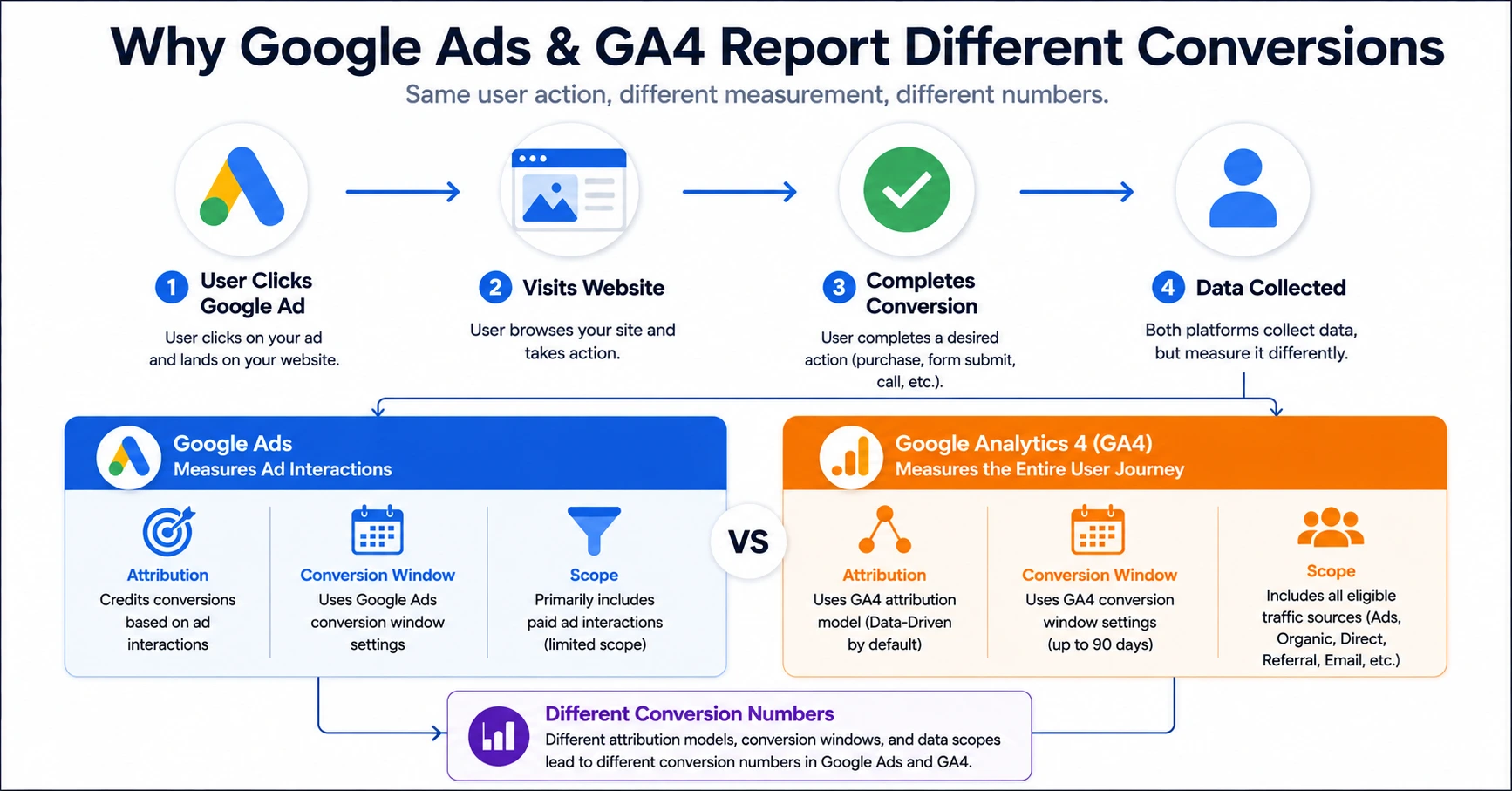
If you’ve ever compared your Google Ads and Google Analytics 4 (GA4) reports, you’ve probably wondered why the conversion numbers don’t match.
While it may seem like one platform is reporting incorrect data, the reality is that Google Ads and GA4 are designed to measure conversions differently.
Understanding these differences is essential before making changes to your tracking implementation.
In many cases, the discrepancy is expected and does not require any corrective action. However, larger differences may indicate configuration issues that should be investigated.
The following sections explore the most common causes of conversion discrepancies between Google Ads and GA4 and provide practical recommendations to improve the accuracy of your conversion tracking.
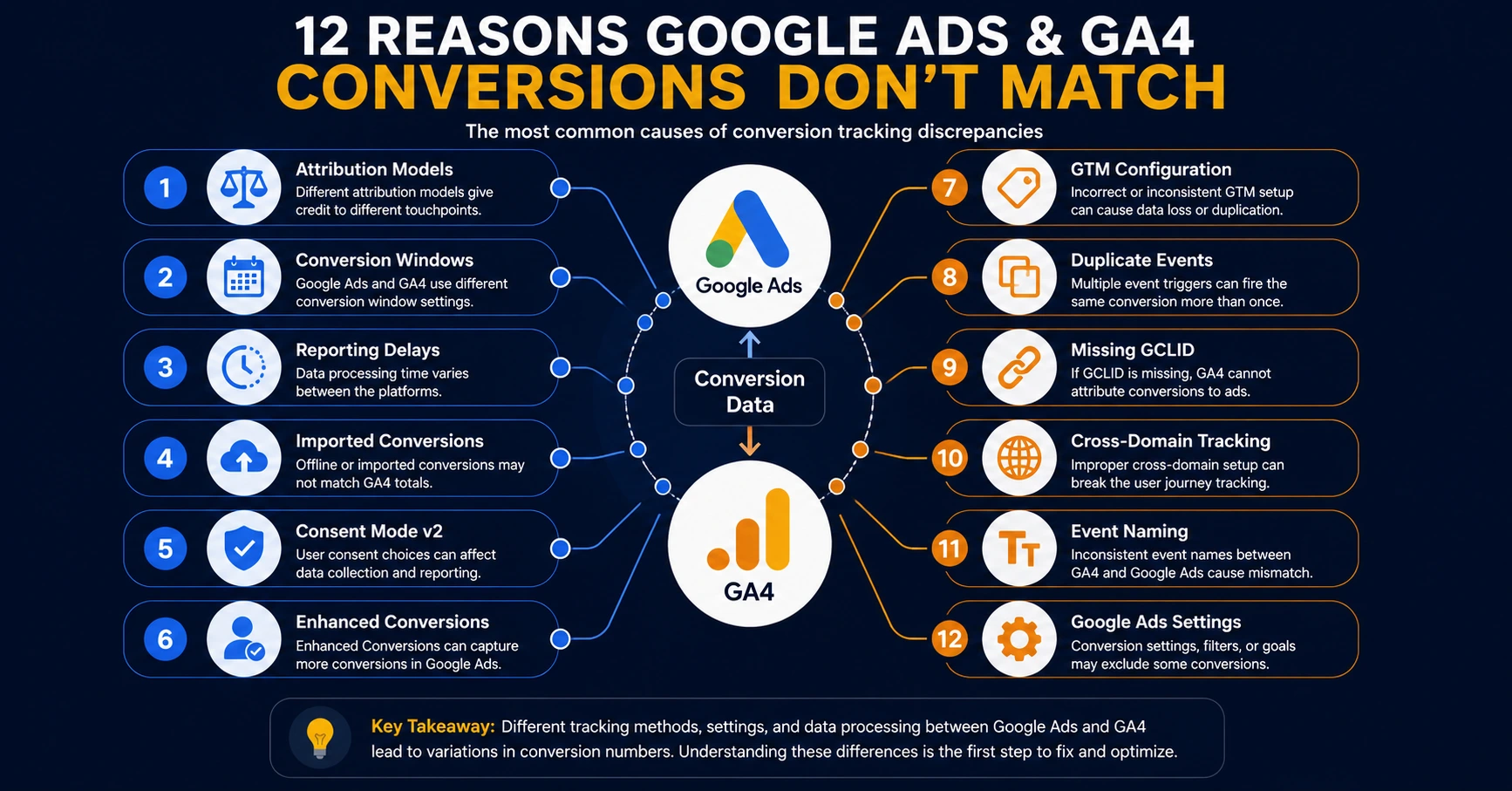
1. Different Attribution Models (Most Common Reason)
One of the biggest reasons Google Ads and GA4 report different conversion numbers is that they often use different attribution models.
An attribution model determines how credit for a conversion is assigned across the user’s journey. A customer may click multiple ads, visit your website several times, return through organic search, and finally complete a purchase. Depending on the attribution model, the conversion may be credited to different marketing channels.
Google Ads focuses on measuring advertising performance, whereas GA4 is designed to analyze the complete customer journey across multiple traffic sources. Because of these different objectives, the same conversion may be attributed differently in each platform.
For example, a user might click a Google Ads campaign, leave the website without converting, return a few days later through an organic search result, and then complete a purchase. Google Ads may still attribute that conversion to the original ad interaction, while GA4 may assign credit differently based on the selected attribution model.
As a result, comparing conversion numbers without considering attribution settings can lead to misleading conclusions.
Why It Happens
Different attribution models distribute conversion credit differently.
For example:
- Last Click
- Data-Driven Attribution
- First Click
- Linear
- Position-Based
- Time Decay (legacy)
Even when both platforms measure the same conversion event, they may assign credit to different channels.
How to Verify
Review the attribution settings in both platforms and confirm:
- The attribution model being used.
- The reporting date range.
- The selected conversion action.
- Whether you’re comparing equivalent reports.
- Best Practice
When comparing Google Ads with GA4, always use the same attribution model whenever possible. Comparing a Data-Driven Attribution report with a Last Click report can create misleading differences that are caused by reporting logic rather than tracking errors.
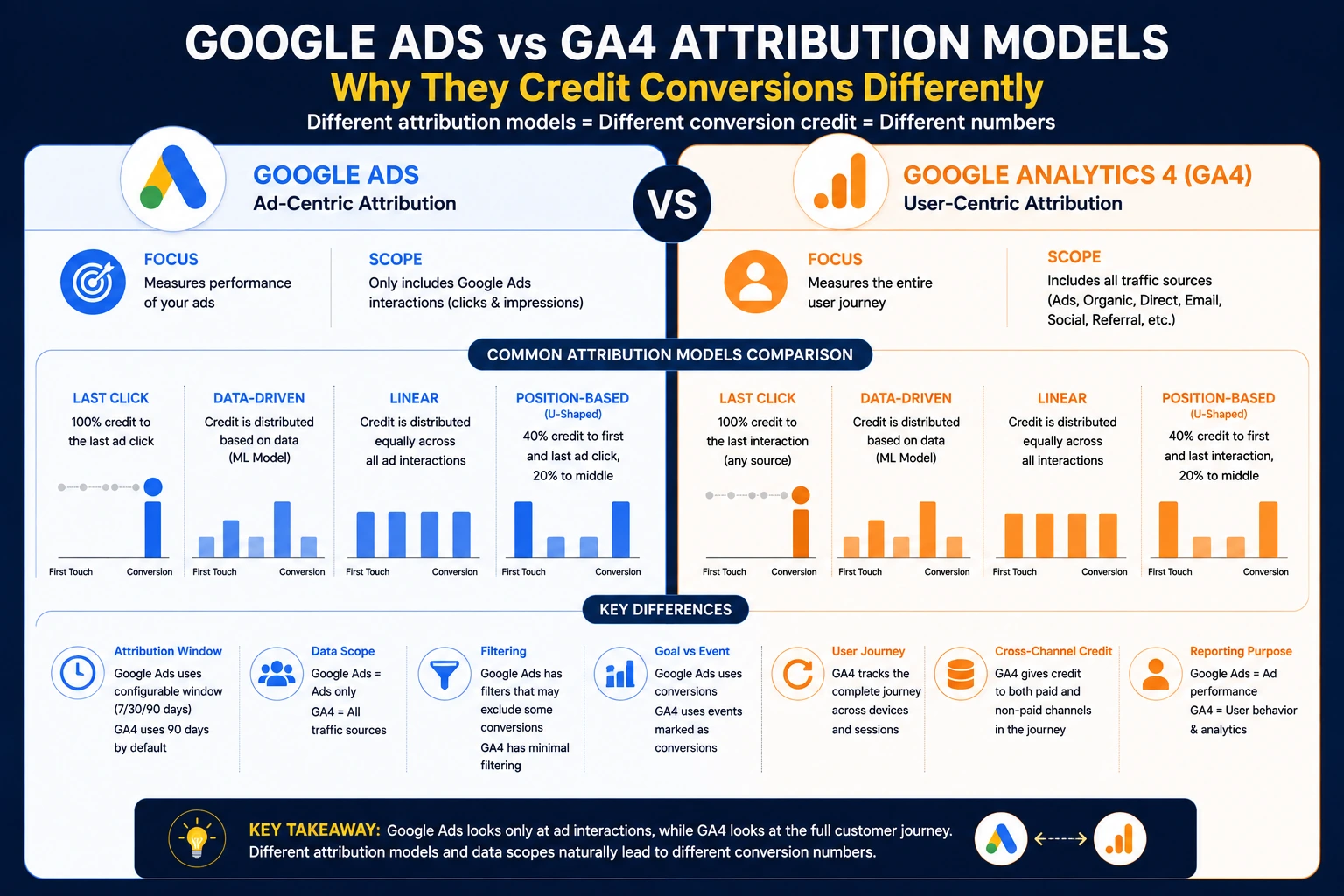
2. Different Conversion Windows
Another common reason for reporting differences is the use of different conversion windows.
A conversion window defines how long after a user interacts with an advertisement a conversion can still be credited to that interaction.
For example, suppose a user clicks your Google Ads campaign today but completes a purchase 20 days later. Whether that purchase is counted depends on the configured conversion window.
If Google Ads uses a 30-day conversion window while GA4 uses a different lookback period, the two platforms may report different conversion totals for the same campaign.
This difference is completely normal and is one of the most overlooked causes of reporting discrepancies.
Why It Happens
Google Ads allows advertisers to configure conversion windows for different conversion actions, while GA4 applies its own attribution lookback settings.
As a result:
- Some conversions may appear only in Google Ads.
- Others may only appear in GA4.
- The same conversion may be counted within different reporting periods.
How to Verify
Check:
- Google Ads conversion action settings.
- GA4 attribution settings.
- Date range used for comparison.
- Lookback window configuration.
Best Practice
Use consistent reporting periods and understand the configured conversion windows before evaluating campaign performance.
Small differences caused by conversion windows are expected and generally do not indicate implementation problems.
3. Reporting Delays Between Google Ads and GA4
Even when your conversion tracking is implemented correctly, Google Ads and Google Analytics 4 (GA4) may not report conversion data at the same time. This delay is known as data processing latency, and it is one of the most common reasons marketers notice temporary differences between the two platforms.
Many users compare reports immediately after testing a conversion and assume something is broken because one platform updates faster than the other. In reality, both Google Ads and GA4 process, validate, and attribute conversion data differently before making it available in reports.
As a result, temporary discrepancies are expected, especially when comparing data from the same day.
Why It Happens
Several factors can contribute to reporting delays, including:
- Data processing time
- Attribution calculations
- Conversion validation
- Imported conversion processing
- Time zone differences
- Data freshness schedules
Because each platform has its own reporting pipeline, conversion data rarely becomes available at exactly the same time.
Real-World Example
Imagine you submit a lead form at 10:00 AM after clicking a Google Ads campaign.
The event appears in GA4 DebugView almost immediately.
It may take additional time before the event appears in standard GA4 reports.
If the conversion is imported into Google Ads, it may take even longer before it appears as a Google Ads conversion.
If you compare reports within the first few hours, the numbers may differ even though your implementation is working correctly.
How to Verify
Before troubleshooting, check the following:
- Is the event visible in GA4 DebugView?
- Does the event appear in Realtime Reports?
- Has the event been marked as a Key Event (Conversion)?
- Has the conversion been imported into Google Ads?
- Has enough time passed for reporting to update?
How to Fix It
In most cases, no fix is required.
Instead:
- Wait until both platforms have finished processing the data.
- Compare reports after an appropriate reporting period.
- Avoid evaluating campaign performance using incomplete same-day data.
- Best Practice
Whenever possible, compare conversion reports using yesterday’s data or an earlier date range rather than today’s data. This reduces the likelihood of making decisions based on incomplete reporting.
4. Imported GA4 Conversions into Google Ads
Many advertisers import conversions from Google Analytics 4 into Google Ads to optimize bidding strategies and measure campaign performance. While this approach is widely recommended, it can also introduce reporting differences if the import configuration isn’t set up correctly.
Imported conversions rely on multiple systems working together, including Google Tag Manager, GA4, account linking, conversion settings, and Google Ads synchronization. If any part of this process is misconfigured, conversion counts may not align between the two platforms.
Why It Happens
Conversion discrepancies may occur because:
- The wrong GA4 Key Event was imported.
- The conversion hasn’t finished syncing.
- Google Ads account linking is incomplete.
- Imported conversions were recently created.
- Attribution settings differ.
- The imported conversion isn’t marked as Primary in Google Ads.
- Real-World Example
Suppose your website records a Contact Form Submission as a Key Event in GA4.
Although the event appears correctly in GA4 reports, it doesn’t appear in Google Ads because the conversion hasn’t been imported or is configured incorrectly.
From the advertiser’s perspective, it appears that Google Ads is “missing” conversions, when in reality the import configuration requires attention.
How to Verify
Check the following:
- Is the GA4 property linked to Google Ads?
- Was the correct Key Event imported?
- Is the imported conversion active?
- Is the conversion included in the “Conversions” column?
- Is the conversion marked as Primary if you intend to use it for bidding?
How to Fix It
Review your Google Ads conversion settings and confirm that:
- The correct GA4 Key Event has been imported.
- Account linking is functioning correctly.
- The conversion action is active.
- Attribution settings align with your reporting objectives.
- The conversion is configured according to your bidding strategy.
Best Practice
Regularly audit imported conversions, especially after creating new GA4 events or modifying existing conversion actions. A small configuration change can affect reporting and automated bidding without generating an obvious error.
5. Consent Mode v2 and User Privacy Choices
As privacy regulations continue to evolve, Consent Mode v2 plays an increasingly important role in how conversion data is collected and reported. If users decline analytics or advertising cookies, Google Ads and GA4 may have limited information available for measurement, which can contribute to conversion discrepancies.
This doesn’t necessarily mean your tracking implementation is broken. Instead, it reflects how modern measurement adapts to user privacy preferences while still attempting to provide useful reporting through modeled data where available.
Why It Happens
Conversion reporting can differ because:
- Users reject analytics or advertising consent.
- Consent signals aren’t implemented consistently.
- GA4 and Google Ads receive different levels of measurement data.
- Modeled conversions and observed conversions may be reported differently.
- Real-World Example
A visitor clicks your Google Ads campaign but declines advertising cookies on your website. Depending on your Consent Mode implementation and platform settings, Google Ads and GA4 may report that user’s conversion differently, resulting in a discrepancy even though the visitor successfully completed the desired action.
How to Verify
Review your implementation by checking:
- Consent Mode configuration in Google Tag Manager.
- Default and updated consent states.
- Whether consent signals are passed correctly.
- Tag Assistant diagnostics.
- GA4 DebugView for consent-related events.
- How to Fix It
If you identify implementation issues:
- Verify your Consent Mode v2 configuration.
- Ensure consent updates are sent correctly.
- Test user journeys with different consent choices.
- Confirm that GTM triggers behave as expected based on user consent.
Best Practice
Treat privacy implementation as part of your conversion tracking strategy rather than as a separate compliance task. Regularly test consent scenarios to ensure your measurement behaves as expected under different user choices.
6. Enhanced Conversions Are Missing or Configured Incorrectly
Enhanced Conversions help improve the accuracy of Google Ads conversion measurement by securely using first-party customer data, such as email addresses or phone numbers, to better match conversions with ad interactions. When Enhanced Conversions are enabled and configured correctly, they can improve conversion reporting, especially in privacy-focused environments.
However, if Enhanced Conversions are missing, partially implemented, or incorrectly configured, Google Ads may report fewer conversions than expected. Although GA4 may successfully record the conversion event, Google Ads may not always be able to attribute it accurately to the corresponding ad interaction.
For businesses running lead generation campaigns or ecommerce stores, this can affect reporting accuracy and automated bidding performance.
Why It Happens
Reporting differences may occur because:
- Enhanced Conversions are not enabled.
- Customer data is not being sent correctly.
- Required fields are missing.
- Data hashing is incorrectly implemented.
- GTM variables are misconfigured.
- Consent settings prevent customer data from being shared.
Real-World Example:
A visitor submits a lead form containing their name, email address, and phone number.
GA4 successfully records the generate_lead event.
However, because Enhanced Conversions are not configured, Google Ads cannot use the available first-party data to improve attribution. As a result, fewer conversions may be reported in Google Ads than expected.
How to Verify
Check the following:
- Is Enhanced Conversions enabled in Google Ads?
- Are customer data variables available in GTM?
- Is the Google Ads Conversion tag receiving the required values?
- Are hashed values being sent successfully?
- Does Tag Assistant show any Enhanced Conversion warnings?
How to Fix It
Review your implementation and ensure:
- Enhanced Conversions are enabled.
- Required customer data is captured correctly.
- GTM variables map to the appropriate fields.
- Consent settings allow eligible data collection.
- Test conversions complete without implementation errors.
Best Practice
Use first-party customer data wherever appropriate and always test Enhanced Conversions after making changes to forms or GTM configurations.
7. Google Tag Manager (GTM) Configuration Issues
Google Tag Manager (GTM) acts as the foundation of many modern conversion tracking implementations. If a tag fails to fire, fires at the wrong time, or is configured incorrectly, both Google Ads and GA4 may receive incomplete or inconsistent conversion data.
Many conversion discrepancies are ultimately traced back to GTM configuration issues rather than problems within Google Ads or GA4 themselves.
Because GTM controls when and how tags execute, a single configuration mistake can affect multiple marketing platforms simultaneously.
Why It Happens
Common GTM configuration problems include:
- Incorrect trigger conditions.
- Missing trigger exceptions.
- Incorrect tag sequencing.
- Variables returning empty values.
- Tags firing multiple times.
- Tags not publishing after changes.
- JavaScript errors preventing execution.
Real-World Example:
A thank-you page trigger is configured to fire only when the URL exactly matches:
/thank-you
However, the website now redirects users to:
/thank-you/
Because the trigger condition no longer matches, the Google Ads Conversion Tag never fires, even though GA4 may still receive the conversion event through another implementation.
How to Verify
Use Google Tag Manager Preview Mode to confirm:
- The correct trigger fires.
- Required variables contain expected values.
- The conversion tag executes successfully.
- No unexpected blocking conditions exist.
- The published container matches your latest changes.
How to Fix It
Review your GTM container and verify:
- Trigger conditions.
- Tag configuration.
- Variable mappings.
- Trigger exceptions.
- Event names.
- Published container version.
After making changes, always retest the complete user journey.
Best Practice:
Maintain a structured GTM container using clear naming conventions, reusable variables, organized folders, and version history. This makes future troubleshooting significantly easier.
8. Duplicate Event Tracking
Duplicate event tracking occurs when the same user action triggers multiple conversion events instead of just one. This is one of the most damaging implementation mistakes because it inflates conversion counts and can mislead both reporting and automated bidding strategies.
For example, a single contact form submission should generate one conversion. If multiple tags fire for the same submission, Google Ads and GA4 may report more conversions than actually occurred.
Duplicate events can distort campaign performance, increase reported conversion rates, and reduce confidence in your marketing data.
Why It Happens
Duplicate conversions commonly occur because:
- Multiple GTM tags fire for the same event.
- Both hardcoded scripts and GTM track the same action.
- Duplicate GA4 event tags exist.
- Multiple triggers activate simultaneously.
- Form submission events fire twice.
- Thank-you page tracking and button click tracking measure the same conversion.
Real-World Example:
A website tracks lead submissions using:
- A button click trigger.
- A form submission trigger.
- A thank-you page view.
When a visitor submits the form, all three triggers activate, resulting in multiple conversion events for a single lead.
Although only one lead was generated, reports may incorrectly show three conversions.
How to Verify
Check the following tools:
- Google Tag Manager Preview Mode
- GA4 DebugView
- Tag Assistant
- Realtime Reports
Watch the complete user journey and confirm that only one conversion event is recorded.
How to Fix It
Review your implementation and remove duplicate tracking methods.
Ensure that:
- Only one trigger records each business conversion.
- Duplicate GA4 events are eliminated.
- Hardcoded scripts do not duplicate GTM tags.
- Conversion actions are clearly defined.
Best Practice:
Assign one primary measurement method for each conversion type. Avoid combining multiple tracking methods unless there is a specific business requirement.
9. Missing GCLID or Auto-Tagging Issues
The Google Click Identifier (GCLID) is a unique parameter that Google Ads appends to your landing page URL when a user clicks on your advertisement. This identifier enables Google Ads to associate website conversions with the correct ad click.
If the GCLID is missing, removed, or blocked before the conversion occurs, Google Ads may not be able to attribute the conversion correctly—even though GA4 successfully records the user action.
For businesses relying on lead generation or ecommerce tracking, missing GCLID values can result in lower reported conversions and inaccurate campaign performance.
Why It Happens
Common causes include:
- Auto-tagging is disabled in Google Ads.
- URL redirects remove the GCLID parameter.
- Landing page scripts overwrite URL parameters.
- Cross-domain navigation loses the GCLID.
- Third-party tools strip query parameters.
- Server-side redirects fail to preserve the GCLID.
Real-World Example:
A user clicks your Google Ads campaign and lands on:
Your website immediately redirects the visitor to another page and removes the gclid parameter from the URL.
Although GA4 still records the lead submission, Google Ads can no longer associate the conversion with the original ad click, resulting in fewer reported conversions.
How to Verify
Review the following:
- Is Auto-Tagging enabled in Google Ads?
- Does the landing page URL contain the gclid parameter?
- Is the parameter preserved after redirects?
- Are URL parameters retained throughout the user journey?
- Does Tag Assistant report any attribution issues?
How to Fix It
Ensure that:
- Auto-Tagging remains enabled.
- Website redirects preserve URL parameters.
- Cross-domain navigation retains the GCLID.
- Landing page scripts do not remove query parameters.
- Marketing platforms correctly receive click identifiers.
Best Practice:
Regularly test your landing pages by clicking a test ad or using a test URL containing a sample gclid parameter to confirm it remains available throughout the conversion journey.
10. Cross-Domain Tracking Problems
Many businesses use multiple domains or subdomains during the customer journey. For example, users may begin on the main website, complete a purchase on a separate checkout domain, or submit a lead form through an external platform.
Without proper cross-domain tracking, Google Analytics 4 may treat these visits as separate sessions or even new users. This can interrupt attribution and create discrepancies between GA4 and Google Ads conversion reports.
Why It Happens:
Cross-domain tracking issues often occur because:
- Domains are not linked correctly.
- Referral exclusions are missing.
- Session information is lost between domains.
- Client IDs are not transferred.
- External booking or payment systems create new sessions.
Real-World Example
A visitor lands on:
www.example.com
They click Book a Demo and are redirected to:
booking.exampleplatform.com
After completing the booking, GA4 starts a new session because cross-domain tracking is not configured correctly.
As a result, the original Google Ads attribution may not be preserved throughout the customer journey.
How to Verify
Check:
- Cross-domain configuration in GA4.
- Referral exclusions.
- Client ID continuity.
- URL linker parameters.
- Session behavior using DebugView.
- How to Fix It
Review your measurement setup and ensure:
- All participating domains are configured for cross-domain measurement.
- Referral exclusions are properly configured.
- User sessions continue across domains.
- Client identifiers are preserved during navigation.
Best Practice:
Whenever your conversion journey spans multiple domains or third-party platforms, test the complete flow from the first ad click to the final conversion before launching campaigns.
11. Incorrect Event Naming or Conversion Configuration
Google Analytics 4 relies on correctly named events and properly configured Key Events (formerly known as Conversions) to measure important business actions.
If events are named inconsistently, never marked as Key Events, or configured differently between GA4 and Google Ads, the two platforms may report different conversion numbers.
Even a small configuration mistake can prevent conversions from appearing where you expect them.
Why It Happens
Reporting differences can occur because:
- Event names do not match.
- Events were renamed after implementation.
- Key Events were never enabled.
- Google Ads imports the wrong event.
- Multiple similar events exist for the same business action.
Real-World Example
A developer creates the event:
lead_submission
However, Google Ads imports:
generate_lead
Although the website successfully records conversions, Google Ads is listening for a different event and therefore reports zero imported conversions.
How to Verify
Review:
- GA4 Event reports.
- Key Event configuration.
- Google Ads imported conversions.
- GTM event names.
- Naming consistency across platforms.
How to Fix it
Ensure:
- Event names remain consistent.
- Only required events are marked as Key Events.
- Google Ads imports the intended event.
- Documentation is updated whenever event names change.
Best Practice:
Create an event naming convention document before implementing tracking. Standardized naming reduces confusion and simplifies future maintenance.
12. Incorrect Google Ads Conversion Settings
Even when Google Tag Manager and GA4 are configured correctly, Google Ads conversion settings themselves can create reporting differences.
Each conversion action includes settings that determine how conversions are counted, attributed, optimized, and reported. If these settings do not align with your business goals, reported conversion data may appear inconsistent.
This final step is often overlooked during troubleshooting, yet it can significantly affect campaign reporting and Smart Bidding performance.
Why It Happens
Differences may result from:
- Incorrect counting method.
- Conversion not included in the Conversions column.
- Wrong attribution model.
- Incorrect conversion category.
- Conversion action marked as Secondary instead of Primary.
- Recently modified conversion settings.
Real-World Example:
A lead generation business counts Every Conversion instead of One Conversion for a contact form.
If the same visitor submits the form multiple times after clicking a single ad, Google Ads counts each submission separately, while your business may only consider the first lead meaningful.
This results in higher conversion numbers that may not accurately reflect actual business outcomes.
How to Verify:
Review each conversion action and confirm:
- Counting method.
- Attribution model.
- Primary vs Secondary status.
- Include in “Conversions” setting.
- Conversion category.
- Conversion window.
How to Fix It
Audit every Google Ads conversion action and ensure the settings align with your reporting and bidding strategy.
If multiple team members manage the account, document any changes to conversion settings to maintain consistency.
Best Practice:
Schedule a quarterly conversion audit to review Google Ads, GA4, and GTM configurations together. Tracking evolves over time, and periodic reviews help identify issues before they affect campaign performance.
How to Diagnose Google Ads and GA4 Conversion Discrepancies
Once you understand the common reasons behind conversion differences, the next step is identifying the exact cause in your own implementation.
Instead of making random configuration changes, follow a structured troubleshooting process. This helps you isolate the issue more efficiently and reduces the risk of introducing new tracking problems.
The following workflow is the same type of approach used by experienced analytics professionals when auditing Google Ads and GA4 conversion tracking.
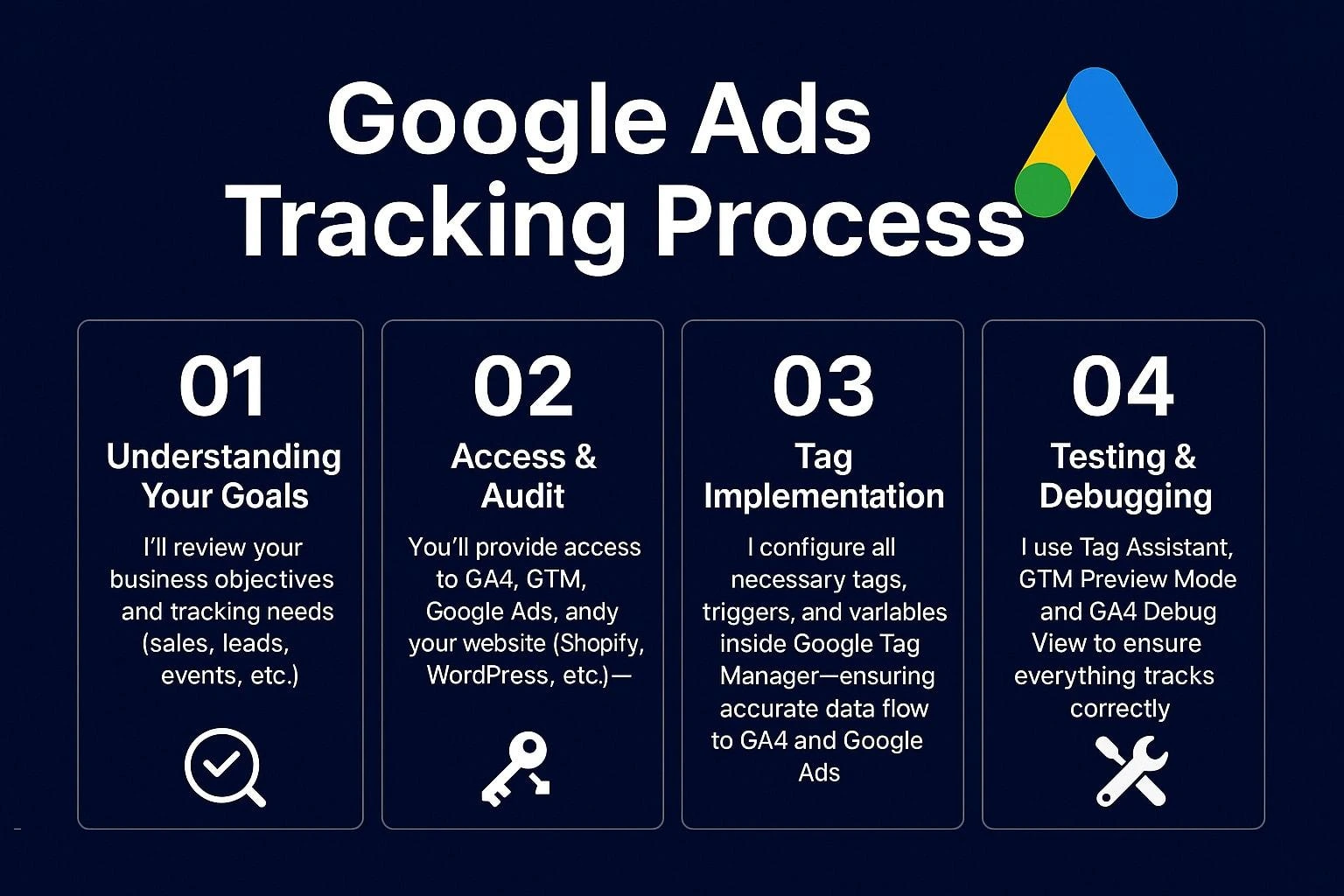
Step 1: Confirm You’re Comparing the Same Data
Before investigating your tracking setup, verify that you’re comparing equivalent reports.
Many discrepancies occur simply because different reports, date ranges, or conversion actions are being compared.
Check the following:
- Are both platforms using the same date range?
- Are you comparing the same conversion action?
- Are the same attribution models being used?
- Are both reports filtered consistently?
- Are time zone settings aligned?
Small reporting differences caused by inconsistent comparisons are common and do not necessarily indicate a tracking problem.
Step 2: Verify the Conversion Event Fires Correctly
The next step is confirming whether the conversion event is actually being triggered.
If the event never fires, neither Google Ads nor GA4 can measure the conversion accurately.
Use Google Tag Manager Preview Mode to verify:
- The expected trigger activates.
- The correct event name is pushed.
- Required variables contain values.
- Tags fire successfully.
- No unexpected errors appear during execution.
If the conversion event doesn’t fire correctly, resolve this issue before investigating attribution or reporting.
Step 3: Check GA4 DebugView
Once the event fires successfully, confirm that GA4 receives it correctly.
GA4 DebugView allows you to inspect events in near real time and validate that your implementation behaves as expected.
Review:
- Event name
- Event parameters
- User journey
- Session continuity
- Conversion timing
If the event appears correctly in DebugView but not in standard reports, the issue may simply be related to data processing latency.
Step 4: Confirm the Event Is Marked as a Key Event
Receiving an event is not enough.
For GA4 to treat an event as a business conversion, it must be configured as a Key Event.
Review your GA4 property and confirm:
- The correct event is marked as a Key Event.
- No duplicate Key Events exist.
- The event name exactly matches your GTM implementation.
- The intended business action is being measured.
A simple naming mismatch can prevent conversions from appearing where expected.
Step 5: Verify Google Ads Conversion Settings
If GA4 is receiving the conversion correctly, the next step is checking Google Ads.
Review the conversion action and confirm:
- The conversion is active.
- It is included in the Conversions column.
- The attribution model matches your reporting goals.
- The counting method is appropriate.
- The conversion window is configured correctly.
Incorrect conversion settings can affect reporting even when your GTM and GA4 implementations are working perfectly.
Step 6: Review Attribution and Conversion Windows
One of the most common reasons for reporting differences is the use of different attribution settings.
Compare:
- Attribution model
- Conversion window
- Lookback window
- Reporting identity
- Campaign interaction history
Remember that Google Ads and GA4 answer different business questions, so minor differences are expected.
Step 7: Test the Complete User Journey
Rather than testing only individual tags, complete the entire conversion journey from beginning to end.
For example:
- Click the advertisement.
- Land on the website.
- Navigate through important pages.
- Submit the form or complete the purchase.
- Verify the event in GTM.
- Confirm the event in GA4.
- Confirm the conversion appears in Google Ads.
Testing the full journey often reveals issues that isolated tag testing cannot identify.
Step 8: Wait for Data Processing
If everything appears correctly configured, avoid making immediate changes.
Both Google Ads and GA4 require time to process, validate, and report conversion data.
Premature troubleshooting often creates additional problems because changes are made before existing data has finished processing.
Whenever possible, evaluate completed reporting periods instead of relying solely on same-day data.
Troubleshooting Workflow Summary
If you’re unsure where to begin, use the following checklist as a quick reference.
Verify:
- Date range
- Attribution model
- Conversion action
- GTM trigger
- GTM variables
- Tag firing
- GA4 DebugView
- Key Event configuration
- Google Ads conversion settings
- Enhanced Conversions
- Consent Mode
- Auto-Tagging
- GCLID preservation
- Cross-domain tracking
- Reporting delay
By following these steps in order, you can eliminate common causes one by one and identify the root cause more efficiently.
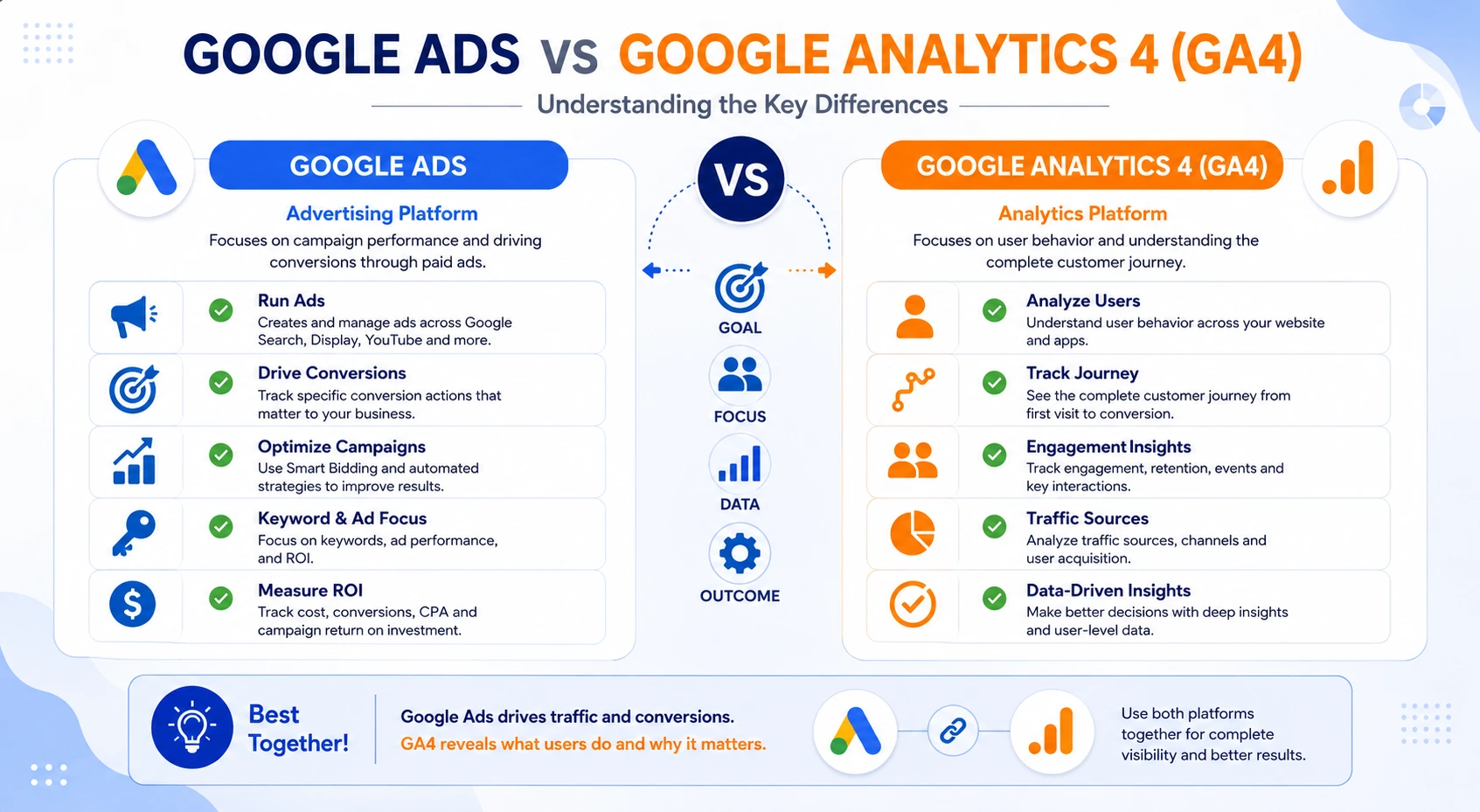
Google Ads vs GA4: Key Differences Explained
Although Google Ads and Google Analytics 4 (GA4) both measure conversions, they are designed for different purposes. Understanding these differences helps you interpret reports correctly and avoid assuming that every reporting discrepancy indicates a tracking issue.
The table below highlights the major differences between the two platforms.
| Feature | Google Ads | Google Analytics 4 (GA4) |
|---|---|---|
| Primary Purpose | Measures and optimizes advertising performance | Measures overall user behavior and website/app performance |
| Main Focus | Campaign effectiveness and ROI | Customer journey and engagement analysis |
| Primary Users | PPC Specialists, Media Buyers, Advertisers | Analysts, Marketers, Business Owners, SEO Professionals |
| Traffic Sources | Google Ads campaigns only | All traffic sources (Organic, Paid, Direct, Social, Referral, Email, etc.) |
| Attribution Purpose | Determines which ads generated conversions | Understands how users interact across multiple channels |
| Default Attribution | Configurable (commonly Data-Driven Attribution) | Configurable (Data-Driven Attribution by default in most properties) |
| Conversion Tracking | Google Ads Conversion Actions | GA4 Key Events (formerly Conversions) |
| Optimization Goal | Improve bidding strategies and ad performance | Analyze customer behavior and business performance |
| Reporting Scope | Google Ads campaigns | Entire website or mobile app |
| Audience Analysis | Limited audience insights | Detailed audience, demographics, technology, acquisition, and engagement reports |
| Cross-Channel Analysis | No | Yes |
| Real-Time Debugging | Limited | GA4 Realtime Reports and DebugView |
| Integration with GTM | Supported through Google Ads tags | Supported through GA4 Configuration and Event tags |
| Enhanced Conversions Support | Yes | Indirectly supports improved measurement through event collection |
| Consent Mode Support | Yes | Yes |
| Cross-Domain Measurement | Depends on implementation | Native support when configured correctly |
| Conversion Import | Can import GA4 Key Events | Does not import Google Ads conversions |
| Reporting Delay | May take several hours depending on processing | DebugView is near real-time; standard reports may take additional processing time |
| Ideal Use Case | Campaign optimization and ROI measurement | Website performance analysis and customer journey insights |
When Should You Trust Google Ads?
Google Ads should generally be your primary source when evaluating advertising performance and making campaign optimization decisions.
For example, use Google Ads to:
- Measure campaign performance.
- Evaluate return on ad spend (ROAS).
- Optimize Smart Bidding strategies.
- Analyze keyword performance.
- Compare ad groups and campaigns.
- Monitor cost per conversion.
Since Google Ads is designed specifically for advertising measurement, it provides the most relevant insights for paid campaign optimization.
When Should You Trust GA4?
Google Analytics 4 is better suited for understanding how users interact with your website or app across multiple marketing channels.
Use GA4 to:
- Analyze customer journeys.
- Measure engagement metrics.
- Evaluate landing page performance.
- Understand traffic acquisition.
- Analyze user behavior before conversion.
- Build custom exploration reports.
- Measure conversions from all marketing channels.
GA4 provides a broader view of business performance beyond paid advertising alone.
H3: Which Platform Should You Use for Reporting?
The answer depends on the question you’re trying to answer.
| Business Question | Recommended Platform |
|---|---|
| Which campaign generated the most leads? | Google Ads |
| Which keywords delivered the best ROI? | Google Ads |
| Which landing page converts the best? | Google Analytics 4 (GA4) |
| How do users navigate before converting? | Google Analytics 4 (GA4) |
| Which traffic source generates the highest engagement? | Google Analytics 4 (GA4) |
| How is my advertising budget performing? | Google Ads |
| Which marketing channel contributes to conversions? | Google Analytics 4 (GA4) |
| Should I increase campaign budget? | Google Ads |
| Where are users dropping off? | Google Analytics 4 (GA4) |
| How does the complete customer journey look? | Google Analytics 4 (GA4) |
Key Takeaways
- Google Ads and GA4 are complementary tools—not competing ones. Google Ads helps you optimize paid advertising and maximize return on investment, while GA4 helps you understand the complete customer journey across all traffic sources.
- Rather than expecting identical conversion numbers, use each platform for the purpose it was designed to serve. When interpreted correctly, the insights from both tools provide a more complete picture of your marketing performance.
Expected vs Unexpected Conversion Differences
This table will help readers quickly determine whether a discrepancy is normal or requires investigation.
| Scenario | Expected? | Action Required |
|---|---|---|
| Different attribution models | ✅ Yes | No |
| Different conversion windows | ✅ Yes | No |
| Reporting delay | ✅ Yes | Wait for data processing |
| Consent Mode modeling | ✅ Usually | Review implementation if differences are significant |
| Duplicate conversion events | ❌ No | Investigate immediately |
| Missing GCLID | ❌ No | Fix Auto-Tagging or URL handling |
| Cross-domain tracking issues | ❌ No | Configure cross-domain measurement |
| Wrong event imported into Google Ads | ❌ No | Review conversion imports |
| Incorrect GTM trigger | ❌ No | Update GTM configuration |
| Wrong conversion settings | ❌ No | Audit Google Ads conversion actions |
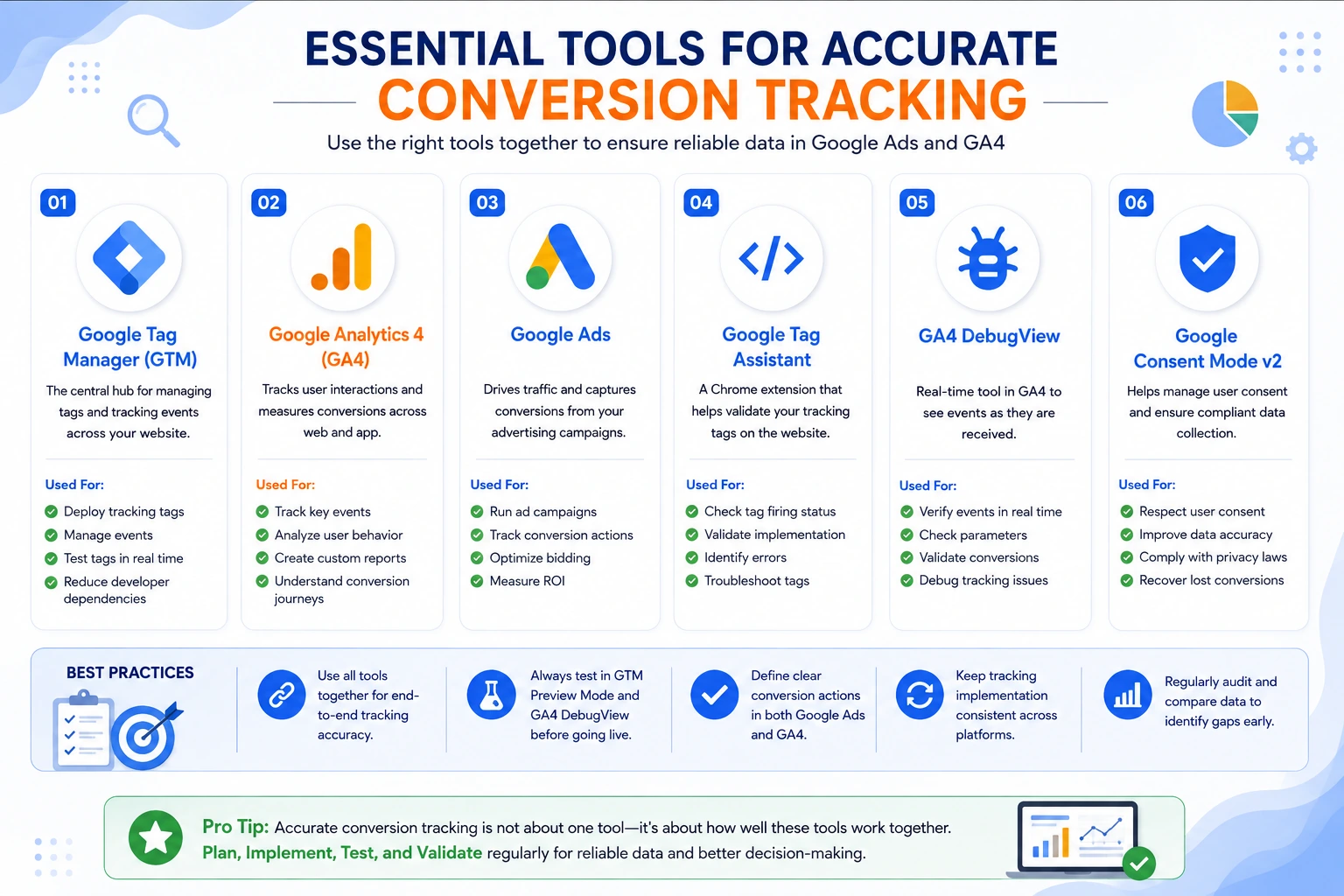
Recommended Tools for Troubleshooting Google Ads and GA4 Conversion Discrepancies
Diagnosing conversion discrepancies requires more than comparing reports in Google Ads and GA4. A structured troubleshooting process involves validating tag execution, reviewing event data, inspecting attribution, and confirming that conversions are processed correctly across all platforms.
The following tools can help you identify and resolve conversion tracking issues more efficiently.
Google Tag Manager Preview Mode
Google Tag Manager (GTM) Preview Mode should be your first stop when troubleshooting conversion tracking. It allows you to simulate a user’s journey and verify that your tags, triggers, and variables are functioning as expected before data reaches Google Analytics or Google Ads.
Best Used For:
- Verifying tag execution
- Checking trigger conditions
- Inspecting variable values
- Testing new GTM changes
- Identifying trigger conflicts
- What to Verify
- Does the correct event trigger?
- Does the intended tag fire?
- Are required variables populated?
- Are there any blocked tags?
- Are duplicate tags firing?
GA4 DebugView
GA4 DebugView lets you monitor incoming events in near real time, making it one of the most valuable tools for validating event collection during implementation and troubleshooting.
Unlike standard reports, DebugView shows the exact sequence of events generated by a user’s interaction.
Best Used For:
- Event validation
- Parameter verification
- User journey testing
- Conversion testing
- Session analysis
What to Verify:
- Correct event name
- Event parameters
- User properties
- Event sequence
- Session continuity
Google Tag Assistant
Google Tag Assistant helps validate whether Google tags are installed and functioning correctly. It can detect common implementation issues and provides useful diagnostics during testing.
Best Used For:
- Verifying Google tags
- Checking tag connectivity
- Identifying implementation warnings
- Testing Consent Mode
- Validating Enhanced Conversions
What to Verify:
- Tag status
- Connection errors
- Consent signals
- Google Ads Conversion Tag
- GA4 Configuration Tag
Google Ads Diagnostics
Google Ads includes built-in diagnostics that help verify whether conversion actions are recording data correctly.
If imported conversions stop updating or conversion counts suddenly decrease, this section is often the quickest place to begin your investigation.
Best Used For:
- Conversion status
- Imported conversions
- Conversion action health
- Tag verification
- Bidding eligibility
What to Verify:
- Active conversion actions
- Conversion source
- Recording status
- Recent activity
- Warning messages
GA4 Realtime Reports
Realtime Reports provide a quick overview of user activity on your website or app within the last 30 minutes.
While they should not replace DebugView during implementation testing, they are useful for confirming that events are reaching GA4 shortly after they occur.
Best Used For:
- Immediate event verification
- Active user monitoring
- Live conversion testing
- Traffic source validation
What to Verify:
- Active users
- Recent events
- Traffic sources
- Landing pages
- Key Events
Troubleshooting Tools Comparison:
| Tool | Primary Purpose | Best Time to Use |
|---|---|---|
| Google Tag Manager Preview Mode | Validate tags, triggers, and variables | Before publishing GTM changes |
| GA4 DebugView | Verify event collection and parameters | During implementation testing |
| Google Tag Assistant | Validate Google tags and diagnose issues | When tags are not firing correctly |
| Google Ads Diagnostics | Review conversion action health | When conversions are missing in Google Ads |
| GA4 Realtime Reports | Confirm incoming events | Immediately after completing a test conversion |
Step-by-Step Troubleshooting Checklist
When conversion numbers don’t match, work through the following checklist in order instead of making random configuration changes.
Tracking Validation:
- Confirm the correct date range is selected.
- Compare the same conversion action in both platforms.
- Verify attribution models.
- Check reporting time zones.
- Confirm conversion windows.
GTM Validation:
- Verify the correct trigger fires.
- Confirm all required tags execute.
- Review trigger conditions.
- Inspect variables.
- Publish the latest container version.
GA4 Validation:
- Verify the event appears in DebugView.
- Confirm the event is marked as a Key Event.
- Check event parameters.
- Review Realtime Reports.
- Confirm no duplicate events exist.
Google Ads Validation:
- Verify the conversion action is active.
- Confirm it is included in the Conversions column.
- Check attribution settings.
- Review counting method.
- Validate Enhanced Conversions.
Technical Validation:
- Verify Auto-Tagging.
- Confirm the GCLID is preserved.
- Test cross-domain navigation.
- Review Consent Mode implementation.
- Check Enhanced Conversion status.
- Validate redirect behavior.
Final Verification
After making corrections:
- Complete a fresh test conversion.
- Validate the event in GTM Preview Mode.
- Confirm it appears in GA4 DebugView.
- Check Realtime Reports.
- Wait for processing.
- Verify the conversion appears in Google Ads.
Common Mistakes to Avoid
Even experienced marketers can unintentionally introduce tracking issues. Avoid these common mistakes when implementing or troubleshooting Google Ads and GA4 conversion tracking.
| Mistake | Why It’s a Problem | Recommended Approach |
|---|---|---|
| Comparing different date ranges | Leads to misleading conclusions | Always use identical reporting periods |
| Comparing different attribution models | Conversion numbers will naturally differ | Align attribution settings where possible |
| Testing only one platform | May hide implementation issues | Validate GTM, GA4, and Google Ads together |
| Ignoring reporting delays | Results may appear incomplete | Wait for data processing before troubleshooting |
| Publishing GTM changes without testing | Can break existing tracking | Always test in Preview Mode first |
| Tracking the same conversion multiple ways | Inflates conversion counts | Use one primary measurement method |
| Renaming GA4 events without updating Google Ads | Imported conversions may stop working | Keep naming consistent across platforms |
| Skipping regular tracking audits | Small issues accumulate over time | Schedule periodic reviews of GTM, GA4, and Google Ads |
Best Practices for Accurate Google Ads and GA4 Conversion Tracking
Accurate conversion tracking is essential for making informed marketing decisions, optimizing advertising budgets, and understanding customer behavior. While minor reporting differences between Google Ads and GA4 are expected, following industry best practices can help minimize discrepancies and improve the overall reliability of your measurement setup.
The recommendations below will help you maintain a stable and scalable conversion tracking implementation.
Use Google Tag Manager as Your Central Tracking Platform
Implement and manage your tracking through Google Tag Manager (GTM) instead of placing individual tracking scripts directly into your website code.
A centralized GTM implementation makes it easier to:
- Manage tracking tags
- Reduce implementation errors
- Test changes safely
- Maintain version history
- Scale your measurement strategy
Standardize Event Naming
Use clear, consistent event names across Google Tag Manager, Google Analytics 4, and Google Ads.
For example:
- generate_lead
- purchase
- sign_up
- begin_checkout
- form_submit
Avoid creating multiple event names for the same business action.
Document Your Tracking Implementation
Maintain documentation that includes:
- Event names
- Trigger conditions
- Variables
- Conversion actions
- GA4 Key Events
- Google Ads conversion settings
Proper documentation makes future troubleshooting significantly easier.
Test Before Publishing
Always validate new tracking implementations using:
- GTM Preview Mode
- GA4 DebugView
- Tag Assistant
Testing before publishing helps identify implementation issues before they affect live reporting.
Audit Your Tracking Regularly
Tracking implementations change over time as websites evolve.
Schedule regular audits to review:
- GTM containers
- GA4 events
- Google Ads conversion actions
- Consent Mode
- Enhanced Conversions
- Cross-domain tracking
Regular reviews help identify issues before they impact campaign performance.
Align Attribution Settings
Whenever possible, use consistent attribution settings when comparing reports between Google Ads and GA4.
Although identical numbers are not expected, aligned attribution models make reporting easier to interpret.
Preserve URL Parameters
Ensure important parameters such as gclid remain available throughout the user’s journey.
Losing click identifiers can affect attribution and conversion reporting.
Monitor Changes After Website Updates
Website redesigns, form updates, plugin changes, and GTM modifications can unintentionally affect tracking.
After every significant website update:
- Test critical conversion paths
- Validate event collection
- Confirm Google Ads conversions continue recording correctly
Monthly Conversion Tracking Audit Checklist
Even if your tracking is working today, future website changes can introduce unexpected issues. A monthly audit helps ensure your data remains accurate and reliable.
Use the checklist below as part of your regular maintenance routine.
| Audit Item | Frequency | Status |
|---|---|---|
| Test all primary conversion actions | Monthly | ☐ |
| Review GTM Preview Mode | Monthly | ☐ |
| Validate GA4 Key Events | Monthly | ☐ |
| Check Google Ads conversion actions | Monthly | ☐ |
| Verify Enhanced Conversions | Monthly | ☐ |
| Test Consent Mode implementation | Monthly | ☐ |
| Confirm Auto-Tagging is enabled | Monthly | ☐ |
| Validate GCLID preservation | Monthly | ☐ |
| Test cross-domain tracking | Monthly | ☐ |
| Review attribution settings | Monthly | ☐ |
| Check for duplicate events | Monthly | ☐ |
| Review conversion windows | Monthly | ☐ |
| Compare Google Ads and GA4 reports | Monthly | ☐ |
| Review website changes affecting tracking | Monthly | ☐ |
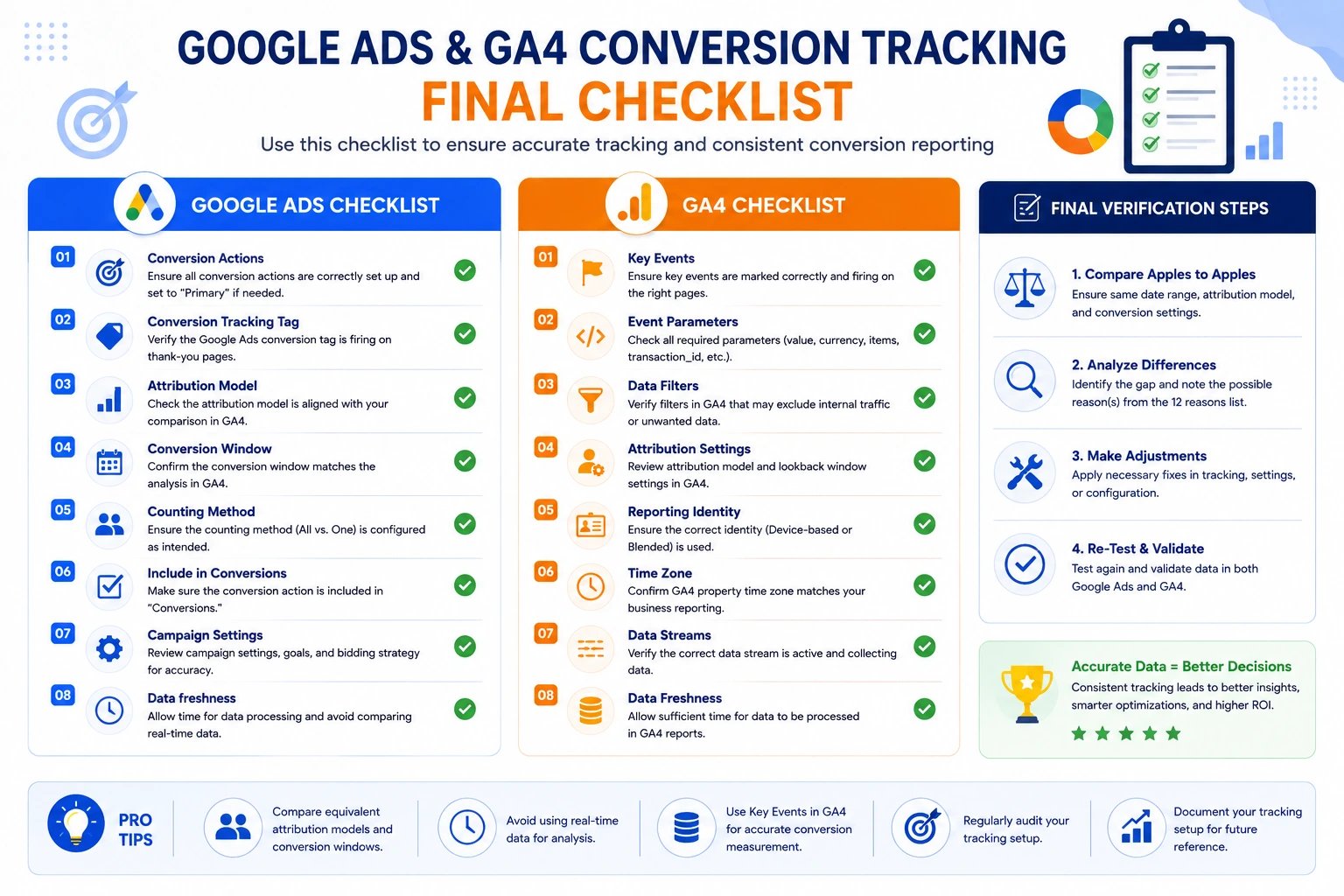
Key Takeaways
If you remember only a few points from this guide, let them be these:
- Google Ads and GA4 are designed for different purposes, so identical conversion numbers are not expected.
- Attribution models, conversion windows, and reporting methodologies are the most common reasons for reporting differences.
- Small discrepancies are usually normal and do not indicate a tracking problem.
- Significant differences should be investigated using a structured troubleshooting process.
- Google Tag Manager, GA4 DebugView, and Tag Assistant are essential tools for diagnosing tracking issues.
- Regular audits and testing help maintain accurate conversion measurement over time.
- Accurate tracking leads to better campaign optimization, more reliable reporting, and more confident business decisions.
Real-World Case Study
A B2B lead generation company noticed Google Ads reporting 30% fewer conversions than GA4.
After reviewing their GTM implementation, we discovered duplicate GA4 events, an incorrect Google Ads conversion import, and missing GCLID preservation during redirects.
After correcting these issues:
- Tracking accuracy improved significantly.
- Smart Bidding received more reliable conversion data.
- Reporting discrepancies were greatly reduced.
- The marketing team gained confidence in campaign performance.
Frequently Asked Questions
Expert Recommendation
If you’re comparing Google Ads and GA4 reports, don’t focus on making the numbers identical. Instead, ensure that:
- Tracking is firing correctly
- Attribution settings are understood
- Business KPIs remain consistent
- Reporting trends are stable over time
Conclusion
Google Ads and Google Analytics 4 are powerful measurement platforms, but they are built with different objectives. While Google Ads focuses on advertising performance and campaign optimization, GA4 is designed to provide a broader understanding of user behavior across your website or app.
Because of these differences, minor conversion discrepancies are expected and should not immediately be viewed as tracking failures. The key is understanding why the differences exist, identifying when they are normal, and recognizing when they indicate an implementation issue.
By following the troubleshooting workflow, best practices, and audit checklist shared in this guide, you can improve the accuracy of your conversion tracking, build greater confidence in your marketing data, and make better-informed business decisions.
Whether you’re managing a lead generation website, an ecommerce store, or enterprise-level advertising campaigns, reliable conversion measurement is the foundation of effective digital marketing. Investing time in a well-structured tracking implementation today will help you optimize campaigns more effectively and maximize your return on investment in the long run.
Ready to Improve Your Conversion Tracking?
If you’re struggling with inaccurate conversion data, inconsistent reporting, or complex Google Tag Manager and GA4 implementations, professional guidance can save valuable time and help you avoid costly mistakes.
Whether you need a complete tracking audit, Google Ads conversion setup, GA4 implementation, Enhanced Conversions, Consent Mode v2 configuration, or end-to-end Google Tag Manager support, working with an experienced implementation specialist can help ensure your measurement strategy is accurate, scalable, and aligned with your business goals.
Need help fixing Google Ads and GA4 conversion discrepancies? I help businesses implement accurate Google Tag Manager, GA4, Google Ads Conversion Tracking, Enhanced Conversions, and Consent Mode. If your reports don’t match or you’re unsure whether your tracking is working correctly, let’s discuss your project.