About This Article
- Why WhatsApp click tracking matters
- How WhatsApp links work
- Creating a WhatsApp Click Trigger in GTM
- Sending events to Google Analytics 4
- Testing with GTM Preview Mode
- Verifying events in GA4 DebugView
- Marking WhatsApp clicks as conversions
Step 2: Identify Your WhatsApp Link
The next step is identifying the WhatsApp URL used on your website.
Open your website and right-click on the WhatsApp button.
Select:
Inspect Element
You should see something similar to:
<a href="https://wa.me/1234567890">
Contact Us on WhatsApp
</a>
Or:
<a href="https://api.whatsapp.com/send?phone=1234567890">
Chat on WhatsApp
</a>
Make a note of the WhatsApp URL because we’ll use it while creating the GTM Trigger.
Step 3: Create a WhatsApp Click Trigger
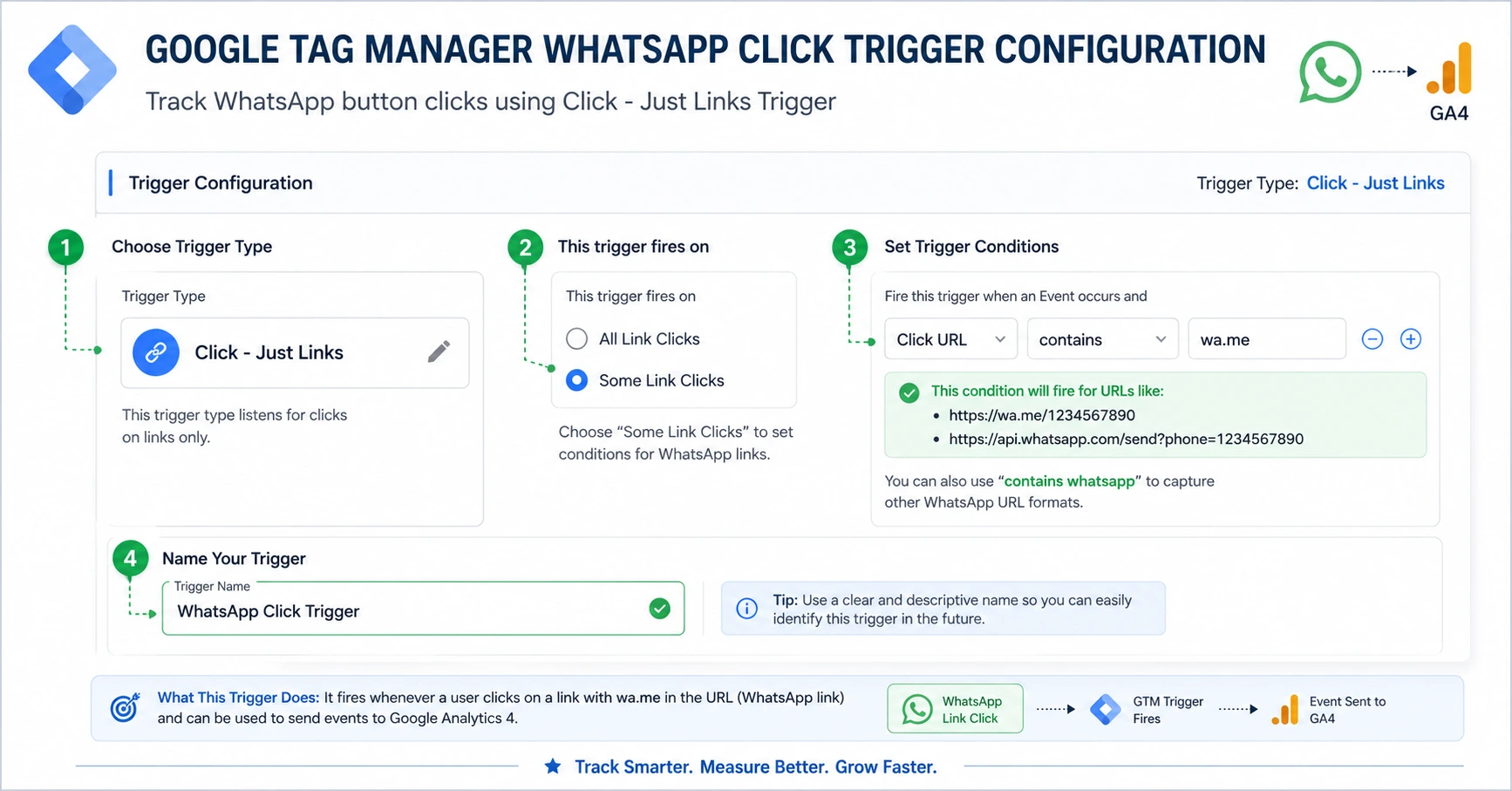
Now let’s create a trigger that fires whenever someone clicks a WhatsApp link.
Navigate to:
Google Tag Manager → Triggers → New
Trigger Configuration
- Trigger Type: Click – Just Links
- Trigger Name: WhatsApp Click Trigger
- Fire On: Some Link Clicks
Trigger Conditions
Use either of the following conditions:
Click URL contains wa.me
OR
Click URL contains whatsapp
Save the trigger.
Step 4: Create a GA4 Event Tag
Next, create a Google Analytics 4 Event Tag that sends WhatsApp clicks to GA4.
Navigate to:
Google Tag Manager → Tags → New
Choose:
Google Analytics: GA4 Event
Tag Configuration
Event Name:
whatsapp_click
Recommended Event Parameters
| Parameter | Value |
|---|---|
| link_url | {{Click URL}} |
| link_text | {{Click Text}} |
| page_url | {{Page URL}} |
Attach the trigger:
WhatsApp Click Trigger
Save the tag.
Step 5: Test Using GTM Preview Mode
Before publishing your changes, test the implementation using GTM Preview Mode.
Click:
Preview
Enter your website URL and connect Tag Assistant.
After Tag Assistant loads:
- Visit the page containing the WhatsApp button.
- Click the WhatsApp button.
- Return to Tag Assistant.
- Review the Events timeline.
You should see:
Link Click
↓
whatsapp_click
If the event appears, your trigger and tag are working correctly.
Step 6: Verify Events in GA4 DebugView
Now verify that Google Analytics 4 is receiving the event.
Navigate to:
Google Analytics 4 → Admin → DebugView
Click the WhatsApp button once again.
Within a few seconds, you should see:
whatsapp_click
inside DebugView.
This confirms that the event is successfully reaching GA4.
Step 7: Mark WhatsApp Clicks as Conversions
To measure WhatsApp interactions as leads, mark the event as a conversion in GA4.
Navigate to:
Google Analytics 4 → Admin → Events
Locate:
whatsapp_click
Enable:
Mark as Conversion
From this point forward, every WhatsApp click will be recorded as a conversion.
Common Issues and Fixes
Trigger Not Firing
Possible causes include:
- Incorrect Click URL condition
- Dynamic JavaScript-generated links
- Third-party WhatsApp widgets
- Wrong Trigger Type
Use GTM Preview Mode to inspect Click URL, Click Classes, and Click Element values.
Event Not Appearing in GA4
Possible causes:
- Incorrect Measurement ID
- GA4 Configuration Tag not firing
- Ad blockers preventing requests
- Browser extensions interfering with tracking
Verify the event using DebugView before publishing.
Third-Party WhatsApp Widgets
Many websites use WhatsApp plugins such as:
- Join.Chat
- Click to Chat
- WP Social Chat
- Floating WhatsApp Widgets
These widgets often generate links dynamically. In such cases, tracking Click Classes or Click Element may work better than Click URL conditions.
Best Practices for WhatsApp Click Tracking
- Use descriptive event names such as whatsapp_click
- Track both desktop and mobile interactions
- Pass Click URL and Click Text as parameters
- Mark important events as conversions
- Validate implementations before publishing
- Monitor events regularly in GA4 reports
button_click. Use a dedicated event like whatsapp_click to improve reporting and conversion analysis.
Final Thoughts
WhatsApp has become one of the most effective lead generation channels for businesses worldwide. By tracking WhatsApp clicks in Google Tag Manager and Google Analytics 4, you gain valuable insights into user behavior, conversion performance, and marketing effectiveness.
Whether you’re tracking form submissions, phone clicks, email clicks, or WhatsApp interactions, accurate conversion tracking is essential for making data-driven marketing decisions.
If you’re already using GTM and GA4, implementing WhatsApp click tracking should be one of the next conversion events added to your measurement strategy.

Prabhakar J