Tracking form submissions is one of the most important conversion tracking implementations for any website. Whether your goal is generating leads, collecting consultation requests, booking demos, or growing your email list, measuring successful form submissions helps you understand which marketing efforts are actually producing results.
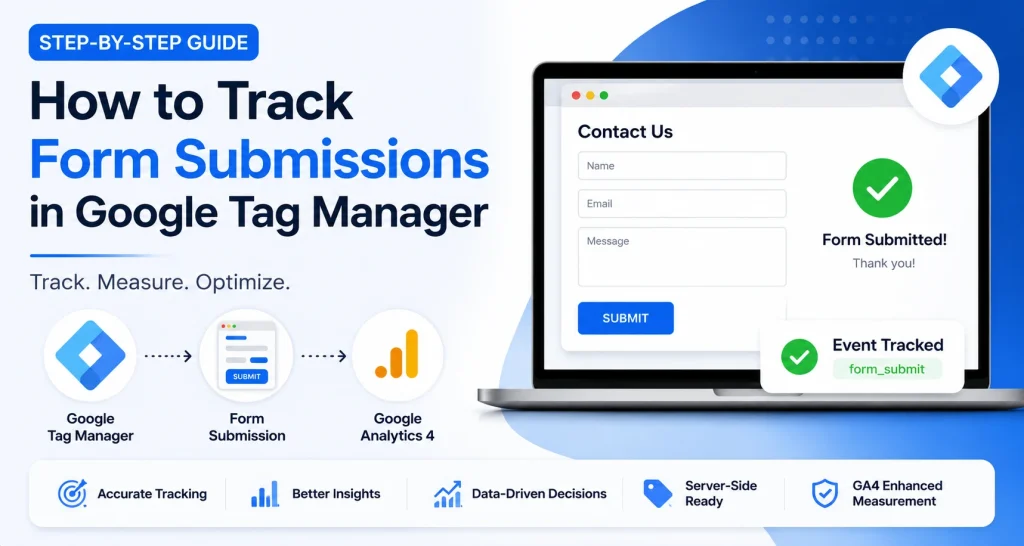
Google Tag Manager (GTM) allows you to track form submissions without modifying your website’s source code every time a new tracking requirement arises. When combined with Google Analytics 4 (GA4), you can measure conversions, evaluate campaign performance, and make data-driven marketing decisions.
In this step-by-step guide, you’ll learn how to track form submissions using Google Tag Manager, send events to Google Analytics 4, verify your implementation, and avoid common tracking mistakes that often lead to inaccurate reporting.
Quick Answer
To track form submissions in Google Tag Manager, enable form variables, create a Form Submission Trigger, create a GA4 Event Tag, attach the trigger to the tag, test the implementation using GTM Preview Mode, verify the event in GA4 DebugView, and then publish the container.
About This Article
- Understand how form submission tracking works in Google Tag Manager.
- Learn the most reliable methods for tracking form submissions.
- Configure a GA4 event tag correctly.
- Validate tracking before publishing changes.
- Avoid common implementation mistakes.
- Improve lead tracking accuracy across your website.
Key Takeaways
- Form submission tracking measures lead generation performance.
- Google Tag Manager allows marketers to implement tracking without repeatedly editing website code.
- Google Analytics 4 can record form submissions as conversion events.
- Testing and validation are critical before publishing tracking changes.
- Different forms may require different tracking methods.
Why Trust This Guide?
I have worked with Google Tag Manager, Google Analytics 4, conversion tracking, website analytics, technical SEO, and digital marketing implementations across multiple websites and business projects. The recommendations in this guide are based on practical implementation experience rather than theory alone.
This guide follows current GTM and GA4 best practices and is written specifically for marketers, business owners, website managers, and analytics professionals who want accurate conversion tracking.
Why Track Form Submissions?
For many businesses, form submissions represent the primary conversion action on a website. When someone submits a contact form, requests a quote, schedules a consultation, or books a demo, they are moving from a website visitor to a potential lead.
Without proper tracking, it becomes difficult to answer important questions such as:
- Which marketing channels generate the most leads?
- Which landing pages convert best?
- Which campaigns produce the highest ROI?
- How many leads does the website generate each month?
- Which traffic sources contribute to business growth?
Form submission tracking transforms guesswork into measurable performance data.
Why Conversion Tracking Matters
Organizations that accurately track conversions are significantly better positioned to optimize campaigns, improve lead generation performance, and allocate marketing budgets effectively.
What Is Form Submission Tracking?
Form submission tracking is the process of recording when a user successfully submits a form on a website. The tracking system captures this interaction and sends the data to an analytics platform such as Google Analytics 4.
Once configured correctly, every successful submission can be recorded as an event, allowing marketers to measure lead generation performance and create conversion reports.
Definition
A form submission event is a tracked interaction that occurs when a user successfully submits a website form and the action is recorded in an analytics platform such as Google Analytics 4.
Before You Start
Before implementing form tracking in Google Tag Manager, make sure you have access to the necessary platforms and tools.
Requirements
- Google Tag Manager Container Access
- Google Analytics 4 Property Access
- Website Administrator Access
- An Active Form on Your Website
- Basic Understanding of GTM Navigation
Tools Used in This Guide




Understanding Form Tracking Methods
Not all forms behave the same way. Modern websites use different technologies and frameworks, which means the tracking method must match the way the form functions.
Before implementing GTM tracking, it’s important to identify which type of form behavior your website uses.
Method 1: Form Submission Trigger
The Form Submission Trigger is the most commonly used method in Google Tag Manager. It listens for successful form submissions and fires a tracking tag when the submission occurs.
This approach works best for traditional HTML forms and many WordPress contact forms.
Method 2: Thank You Page Tracking
Some websites redirect users to a dedicated thank-you page after submission.
Example:
/thank-you/
This method is often considered one of the most reliable approaches because a page view confirms the submission was completed successfully.
Method 3: Button Click Tracking
Certain forms use AJAX technology and never reload the page after submission.
In these situations, tracking the submit button click or confirmation message may be necessary.
Method 4: Custom Event Tracking
Advanced websites may push custom events into the Data Layer when a form submission succeeds.
This is generally the most flexible and reliable solution for complex websites and applications.
Important Note: Many modern forms use AJAX technology. In these cases, GTM’s default Form Submission Trigger may not work correctly, and alternative tracking methods such as custom events or thank-you page tracking may be required.
Which Form Tracking Method Should You Use?
| Method | Reliability | Difficulty | Recommended For |
|---|---|---|---|
| Form Submission Trigger | High | Easy | Traditional Forms |
| Thank You Page Tracking | Very High | Easy | Lead Generation Sites |
| Button Click Tracking | Medium | Medium | AJAX Forms |
| Custom Event Tracking | Very High | Advanced | Custom Applications |
My Practical Recommendation
For most business websites, I recommend using Thank You Page Tracking whenever possible. It is easier to validate, less prone to breaking after website updates, and provides a clear indication that the user successfully completed the form.
If a thank-you page is not available, the next best option is a properly configured Form Submission Trigger in Google Tag Manager.
In the next section, we’ll walk through the complete implementation process inside Google Tag Manager and send form submission events to Google Analytics 4.
Step-by-Step Implementation in Google Tag Manager
Now that you understand the available tracking methods, let’s implement form submission tracking using Google Tag Manager and Google Analytics 4.
The goal is simple: when a visitor successfully submits a form, GTM should detect the action and send an event to GA4.
Step 1: Open Google Tag Manager
Sign in to your Google Tag Manager account and select the container installed on your website.
Navigate to:
Google Tag Manager
→ Workspace
All configuration changes will be performed inside the Workspace.
Step 2: Enable Built-In Form Variables
Before creating triggers, GTM needs access to form-related variables.
Navigate to:
Variables
→ Configure
Enable the following variables:
- Form ID
- Form Classes
- Form Element
- Form Target
- Form URL
- Click Classes
- Click ID
- Click Text
These variables help identify exactly which form was submitted.

Figure 1: Enable Form Variables in GTM.
Pro Tip:
Enable only the variables you actually need. Keeping GTM organized makes troubleshooting easier as your container grows.
Step 3: Create a Form Submission Trigger
Next, create the trigger that will listen for successful form submissions.
Navigate to:
Triggers
→ New
Choose:
Trigger Type
→ Form Submission
Configure the trigger settings:
- Wait For Tags: Enabled
- Check Validation: Enabled
These settings improve tracking reliability.
Important: Always test with “Check Validation” enabled first. Some forms behave differently and may require additional configuration.
Choose Which Forms To Track
You have two options:
Option 1: All Forms
Track every form submission on the website.
This trigger fires on:
All Forms
This is useful for simple websites with only one form.
Option 2: Specific Forms
Track only a specific form using Form ID or Form Classes.
Form ID equals contact-form
This method is recommended for websites with multiple forms.
Common Mistake:
Using “All Forms” on websites that contain multiple forms can produce inaccurate reporting and make conversion analysis difficult.
Step 4: Test Your Form Trigger
Before creating any GA4 tags, verify that your trigger is working correctly.
Click:
Preview
inside Google Tag Manager.
Enter your website URL and connect GTM Preview Mode.
Once connected:
- Open your website
- Submit the form
- Return to Tag Assistant
- Verify the trigger fired
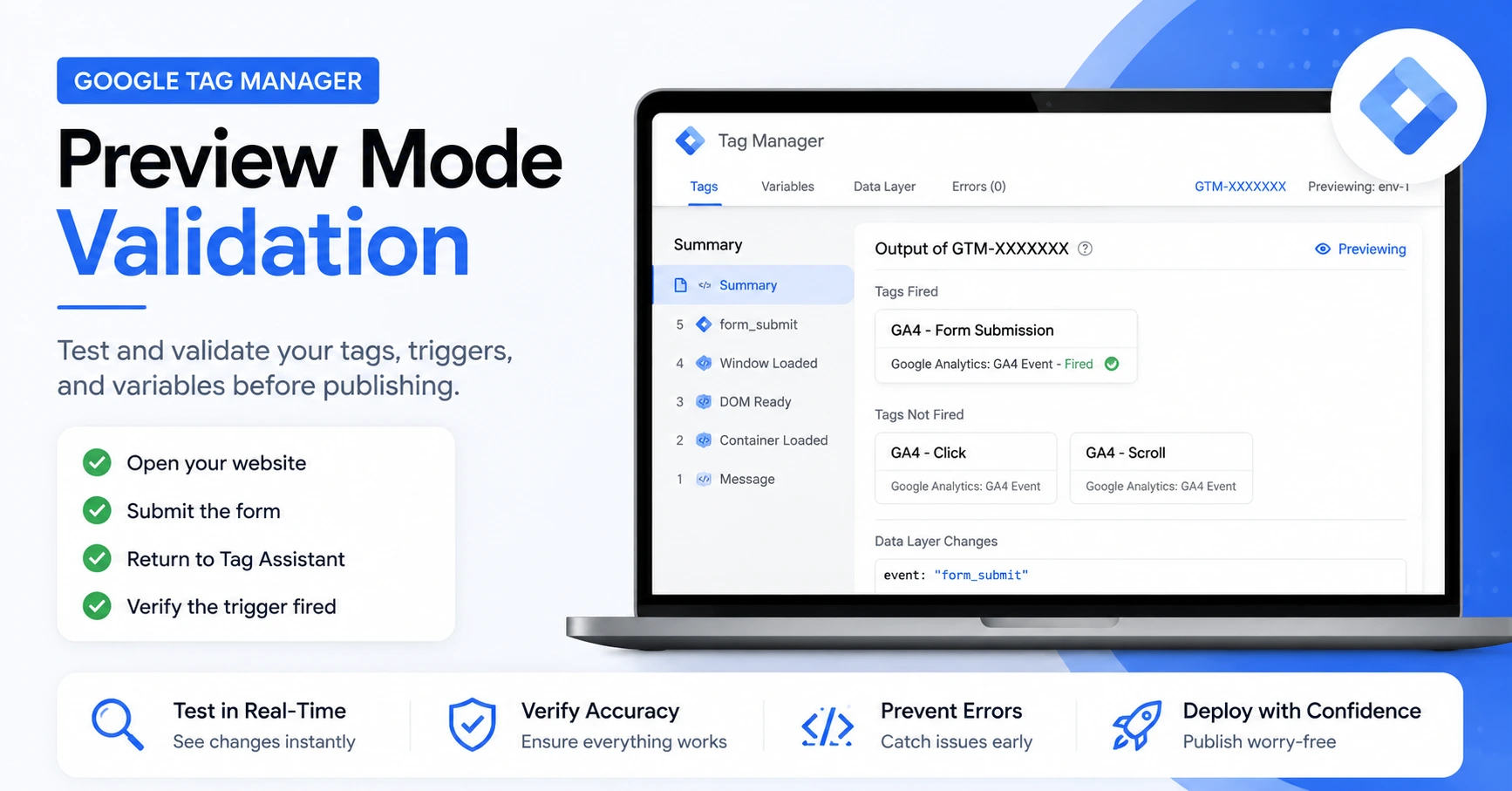
Figure 2: GTM Preview Mode validating the form trigger.
Figure 2: GTM Preview Mode validating the form trigger.
Step 5: Create a GA4 Event Tag
Now that the trigger works correctly, create a GA4 event tag.
Navigate to:
Tags
→ New
Choose:
Google Analytics: GA4 Event
Select your existing GA4 Configuration Tag.
Configure:
Event Name:
form_submit
This event will be sent whenever the trigger fires.
Recommended Event Parameters
Adding event parameters provides more useful reporting data.
| Parameter | Description |
|---|---|
| form_id | Unique identifier of the form |
| form_classes | CSS classes associated with the form |
| page_location | URL where the submission occurred |
| page_title | Title of the page containing the form |
These parameters make future analysis significantly easier.
Pro Tip:
Use lowercase event names and a consistent naming convention across your entire GTM container.
Step 6: Attach the Trigger
Attach the Form Submission Trigger created earlier to your new GA4 Event Tag.
Your setup should now look like:
GA4 Event Tag
↓
Form Submission Trigger
Save the tag.
Common Mistake:
Many users create the event tag but forget to assign the trigger. When this happens, no data is sent to GA4.
Step 7: Test Using Preview Mode
Before publishing your GTM container, perform a complete validation.
Open Preview Mode again and submit the form.
Verify:
- Form Trigger Fired
- GA4 Event Tag Fired
- No GTM Errors
Successful validation indicates that GTM is sending the event correctly.
Validation Checklist
- Built-In Variables Enabled
- Trigger Created Successfully
- Trigger Fires During Testing
- GA4 Event Tag Created
- Event Parameters Configured
- Tag Fires Correctly
- No Errors In Preview Mode
Step 8: Verify Data in Google Analytics 4
The final step is verifying the event inside Google Analytics 4.
Navigate to:
GA4
→ Admin
→ DebugView
Submit the form again.
You should see:
form_submit
appear in the DebugView event stream.

Figure 1: Google Analytics 4 Debug View
Figure 3: Form submission event appearing in GA4 DebugView.
Why DebugView Matters
DebugView allows you to validate events before they appear in standard GA4 reports.
Instead of waiting several hours for data processing, DebugView confirms that the implementation works immediately.
Practical Recommendation
For most business websites, I recommend tracking form submissions using one of the following approaches:
- Thank You Page Tracking (Most Reliable)
- Custom Data Layer Event Tracking
- Form Submission Trigger
- Button Click Tracking (Last Option)
The more reliable the implementation method, the more trustworthy your conversion data will be.
Now that the event is successfully firing in GTM and appearing inside GA4, the next step is understanding how to troubleshoot common problems, validate tracking accuracy, and turn form submissions into GA4 conversion events.
Troubleshooting Common Form Tracking Issues
Even when Google Tag Manager is configured correctly, some forms may not trigger events as expected. Modern websites often use AJAX submissions, JavaScript frameworks, and custom form plugins that require additional troubleshooting.
Form Submission Trigger Is Not Firing
If your trigger does not fire when the form is submitted, check the following:
- Confirm that GTM Preview Mode is connected.
- Verify the trigger conditions are correct.
- Check whether the form uses AJAX.
- Ensure the form actually submits successfully.
- Look for JavaScript errors in the browser console.
Important: Many modern forms no longer use traditional HTML form submissions. Instead, they use AJAX requests that require alternative tracking methods.
How to Track Contact Form 7 Submissions
Contact Form 7 includes custom events that can be captured by Google Tag Manager.
Instead of relying on the standard Form Submission Trigger, you can listen for:
wpcf7mailsent
and push a custom event into Google Tag Manager.
This method is generally more reliable than traditional form tracking.
How to Track Elementor Forms
Elementor forms often submit using AJAX and may not trigger standard GTM form submission events.
Recommended options:
- Track a Thank You Page.
- Track a Success Message.
- Use Elementor’s built-in event hooks.
- Implement Data Layer events.
How to Track AJAX Forms
AJAX forms submit data without refreshing the page.
Because no page reload occurs, GTM may not detect a standard form submission.
For AJAX forms, consider:
- Custom Event Tracking
- Data Layer Events
- Success Message Tracking
- Button Click Tracking
Pro Tip:
Whenever possible, ask your developer to push a custom Data Layer event after successful form submission. This is one of the most reliable tracking methods available.
How to Turn Form Submissions Into GA4 Conversions
Capturing the event is only the first step. To measure lead generation performance effectively, you should mark form submissions as conversions in Google Analytics 4.
Step 1: Verify Event Collection
Confirm that the following event appears inside GA4:
form_submit
Use DebugView and Realtime reports for validation.
Step 2: Create a Conversion
Navigate to:
Admin
→ Events
Locate:
form_submit
and mark it as a conversion event.
Step 3: Validate Conversion Reporting
After several successful submissions, verify that conversions appear within:
Reports
→ Engagement
→ Conversions
You can now analyze conversion performance across channels, campaigns, landing pages, and traffic sources.
Common Form Tracking Mistakes
Common Mistake:
Mistake #1: Publishing GTM changes without testing in Preview Mode.
Mistake #2: Tracking button clicks instead of successful submissions.
Mistake #3: Using “All Forms” on websites containing multiple forms.
Mistake #4: Failing to verify events inside GA4 DebugView.
Mistake #5: Not marking important lead events as conversions.
Real-World Implementation Advice
After implementing conversion tracking on multiple websites, one lesson becomes clear:
Simple tracking setups are usually the most reliable.
Whenever possible:
- Use Thank You Pages.
- Use consistent event naming conventions.
- Keep GTM organized.
- Document your implementation.
- Test after every website update.
Not always. Traditional HTML forms are easier to track than AJAX-based forms. Some websites require custom event tracking.
Use consistent event naming across all websites and properties.
Related Resource
Learn the fundamentals of Google Tag Manager, including tags, triggers, variables, and container management.
Explore the Google Tag Manager Resource →
Continue Learning
Explore related guides to improve your analytics and tracking implementation.
Continue Learning
Frequently Asked Questions
Conclusion
Tracking form submissions in Google Tag Manager is one of the most valuable analytics implementations for any business website. Accurate form tracking helps measure lead generation performance, optimize marketing campaigns, and understand which traffic sources produce meaningful business outcomes.
The implementation process involves enabling GTM variables, creating a Form Submission Trigger, configuring a GA4 Event Tag, testing in Preview Mode, and validating data inside Google Analytics 4.
For most websites, Thank You Page tracking provides the most reliable results. However, GTM Form Submission Triggers, custom events, and Data Layer implementations can also deliver accurate conversion measurement when configured correctly.
As your tracking maturity grows, consider expanding beyond form submissions to include button clicks, phone calls, PDF downloads, video engagement, and server-side tracking for a more complete analytics strategy.
Free Download: GTM Form Tracking Checklist
Get a step-by-step checklist to implement, test, and validate Google Tag Manager form submission tracking and GA4 conversions. Download Checklist

Prabhakar J